
We've all been there: a 50-page PDF arrives, and your boss wants it in Excel by EOD. In the past, this meant hours of data-entry work. In 2026, that's no longer the only option.
This is especially painful with invoices, bank statements, and financial reports — where one misaligned column creates a chain reaction of reconciliation errors downstream. The problem isn't just the time it takes. It's that manual entry introduces mistakes that don't surface until month-end, when untangling them costs even more time.
This guide is most useful if you're a bookkeeper, accountant, or finance ops person dealing with recurring PDF documents — not a one-off personal file. For invoice-specific workflows — multi-vendor batches, bulk AP processing, or QuickBooks import — see our dedicated invoice data extraction solution.
Here are the six most effective ways to convert PDF to Excel, when to use each one, what goes wrong, and how to fix it.
TL;DR: Use Excel Power Query for simple, digitally generated PDFs. Use an AI Extractor like PerfectParser for scanned PDFs, invoices, complex formatting, or recurring batches of documents.
Which Method Should You Use?
Before diving into each option, answer three quick questions:
1. Is your PDF scanned or digitally generated?
Scanned means it came from a phone camera, flatbed scanner, or was printed and re-scanned. Digitally generated means it was created in software — exported from QuickBooks, sent as an e-invoice, downloaded from a vendor portal. If it's scanned, most basic methods will fail. You need an AI-based tool.
2. How many files are you processing?
One file, occasionally: Excel Power Query or an online converter is fine. Recurring batches of 10, 50, or 500 files: only AI extraction scales without turning into a part-time job.
3. Does accuracy matter financially?
If you're importing the output into accounting software or making payment decisions based on it, one wrong digit matters. Online converters are fast but sloppy on anything complex.
If you answered "scanned," "many files," or "yes to accuracy" — go straight to Method 1.
Method 1: Use AI Data Extraction Software (Best for Bulk Invoices)
If you're processing multiple files or dealing with complex layouts — invoices, financial statements, purchase orders — PerfectParser uses Vision Language Models (VLM) to identify and extract data with precision, even from scanned PDFs and non-standard layouts.
The key difference from every other method on this list: it understands the meaning of fields, not just their position on the page. When a vendor redesigns their invoice template, the extraction doesn't break. When a scanned document has a slight skew, it still reads correctly. When you have 200 invoices from 40 different vendors in one batch, it processes all of them without you touching each one individually.
In our processing of invoice batches, AI extraction consistently achieves 95%+ field-level accuracy across standard document types — compared to manual entry error rates of 1–4% per field, which sounds small until you're reconciling 500 line items at month-end.
How to extract PDF data to Excel using AI:
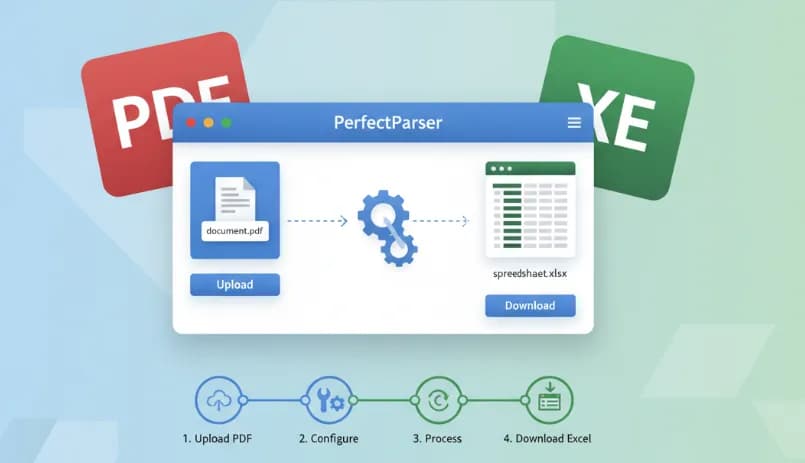
- •Upload a sample document to the PerfectParser dashboard. This acts as the blueprint — you're showing the AI what kind of document you're working with and what fields matter to you.
- •Review the auto-generated schema. The AI proposes the fields it detected: vendor name, invoice number, date, line items, totals, tax. Adjust if needed. This setup happens once per document type, not once per file.
- •Bulk upload your remaining files. Drop in your full batch — 1 file or 1,000. The AI processes every document against your schema, regardless of how different the layouts look across vendors.
- •Download your .xlsx file. All extracted data lands in one clean spreadsheet. Each row is one document, each column is one field. Ready to sort, filter, import, or analyze immediately.
Best for: Invoices, financial reports, multi-vendor batches, scanned documents, recurring monthly processing.
What can go wrong: Very low-quality scans — under 150 DPI, heavy shadow, or severe skew — can reduce accuracy. If you're scanning paper documents, aim for at least 200 DPI with a flatbed scanner rather than a phone camera held at an angle.
Once your invoice data is structured, use the free Invoice to CSV converter and import the file in QuickBooks Online under Settings → Import data → Bills.
Method 2: Excel Power Query — Best for Simple Digital PDFs
Excel has a built-in PDF connector that most people don't know exists. It's genuinely useful for the right use case — and the wrong tool for everything else.
- •Open Excel → Data tab → Get Data → From File → From PDF.
- •Select your file. A Navigator window opens showing the tables Excel detected.
- •Choose the table you want, click Transform Data to fix any alignment issues.
- •Click Close & Load to push the data into your spreadsheet.
Best for: Simple, one-off tasks with digitally generated (non-scanned) PDFs that have clean, clearly separated tables.
What can go wrong: Three things break Power Query reliably. First, scanned PDFs — it simply cannot read them. Second, tables with merged cells or multi-row headers; Excel splits them incorrectly and you end up with misaligned data. Third, tables that span multiple pages; Power Query sometimes treats each page as a separate table instead of one continuous dataset, leaving you to stitch them together manually anyway.
If Power Query gives you garbled output or empty cells, the document is almost certainly either scanned or has a complex table structure. That's when you switch to Method 1.
If you're using Power Query to extract vendor invoice data, our free vendor invoice tracker can help you organize and monitor payment status across multiple suppliers once the data is in Excel.
Method 3: Online Document Converters — Fine for Non-Sensitive One-Offs
Browser-based converters are the fastest option if you have a simple document and don't need the output to be precise.
- •Search "PDF to Excel converter" and choose one of the top results.
- •Upload your PDF and wait for the conversion.
- •Download the .xlsx output.
Done in two minutes. The catch is what you get.
Best for: Simple documents with basic table layouts and no confidential information.
What can go wrong: Online converters read text position, not meaning. On any invoice with a complex layout — multiple columns, footer totals, line items that wrap across rows — they frequently merge cells incorrectly, drop rows, or scramble column order. You can spend more time fixing the output than you would have spent doing it manually. Also worth noting: uploading client financial documents to a random web service is a data security risk. For anything sensitive, use a tool with a clear privacy and data retention policy.
Method 4: Adobe Acrobat Pro — Best for High-Design PDFs
If you already have a Creative Cloud subscription, Acrobat Pro is worth trying for complex, design-heavy documents — annual reports, branded proposals — where layout fidelity matters more than raw data accuracy.
- •Open the PDF in Acrobat Pro.
- •Click Export PDF → Spreadsheet → Microsoft Excel Workbook.
- •Save the file and open in Excel.
Best for: Documents where preserving the visual structure matters — complex fonts, images, intricate formatting.
What can go wrong: Acrobat Pro is excellent at preserving how things look, which is actually the wrong priority for data extraction. If your goal is clean, usable data to import or analyze, you'll often get cells stuffed with mixed content, headers merged with data rows, or numbers stored as text that Excel won't sum. It also requires a manual step for each individual file — no batch processing — and costs around $20/month if you don't already have it.
Method 5: AI Spreadsheet Connectors — Easiest, Least Reliable
In 2026, Excel and Google Sheets both support AI sidebar plugins that can read PDF attachments and convert them into rows through a conversational interface.
- •Open the AI sidebar in your spreadsheet application.
- •Attach your PDF and type: "Extract the table from this PDF into my active sheet."
- •Review what the AI produced and correct any errors.
Best for: Teams that want a no-code conversational approach for occasional, simple documents.
What can go wrong: These tools are impressive for simple cases and surprisingly unreliable for complex ones. Financial documents with precise numbers are exactly where you need accuracy most — and conversational AI tools aren't optimized for structured data extraction at that precision level. One misread digit on an invoice total has real consequences. Treat this as a convenience feature for occasional use, not a financial workflow.
Method 6: Microsoft Word — Emergency Use Only
If nothing else is available and you need a table out of a PDF right now, Word can technically help.
- •Right-click the PDF → Open With → Word.
- •Word warns you it's converting the file — accept and wait.
- •Find the table, copy it, paste into Excel using Paste Special → Match Destination Formatting.
Best for: Pulling a single snippet from a simple, text-based PDF when no other tool is accessible.
What can go wrong: Almost everything. Word's PDF conversion mangles complex layouts, merges columns, drops rows, and inserts random line breaks inside cells. For anything beyond a basic two-column table, the cleanup time exceeds the time saved. This is a last resort, not a method.
Comparing PDF to Excel Conversion Methods
Why is my PDF not converting correctly to Excel?
After processing thousands of documents, the same issues come up repeatedly. Here's what to watch for before they cost you time.
"My PDF won't open in Power Query / shows no tables." Almost always means the PDF is image-based (scanned). Open the PDF and try to click on text with your cursor. If you can highlight individual words, it's text-based and Power Query should see it. If the whole page selects as one block, it's image-based — switch to an AI tool that includes OCR.
"The columns are merging when I paste into Excel." This is the copy-paste problem. PDFs don't have real columns — they have text positioned at coordinates. When you copy, Excel gets a flat stream of characters. Fix: use Paste Special → Text Only first, then reformat. Better fix: don't copy-paste from financial PDFs at all. Use a proper extraction tool.
"I'm getting numbers stored as text — Excel won't sum them." Common with online converters and Adobe exports. The numbers look right but have hidden characters or are formatted as text strings. Fix: select the affected column, Data → Text to Columns → Finish. Or use the Value() function to convert. Better fix: AI extractors output proper numeric data types, not text representations of numbers.
"Each page of my PDF is coming in as a separate table." Power Query limitation on multi-page PDFs. You'll need to append the tables manually in the Power Query editor — select all table queries, right-click, Append. Or switch to an AI extractor that handles multi-page documents as a single unit.
"The output looks fine but some rows are missing." Check whether those rows had line items that wrapped onto a second line within the same cell in the PDF. Position-based converters treat each visual line as a separate row, so a wrapped line item gets split incorrectly. AI extraction reads the logical structure rather than the visual layout, so wrapped content stays in the right row.
The Bottom Line
The method you pick should match your document type, volume, and accuracy requirements.
- •One simple digital PDF, occasionally: Excel Power Query or an online converter is fine.
- •Invoices, financial reports, or anything scanned: Use AI extraction. The accuracy difference is significant enough to matter.
- •Recurring monthly batches from multiple vendors: PerfectParser with a saved schema is the only approach that scales. You configure the extraction once per document type, and every subsequent batch runs without manual reconfiguration.
The real cost of manual PDF-to-Excel work isn't just the hours — it's the errors that slip through. A bookkeeper processing 100 invoices a month manually makes, on average, 4–8 data entry mistakes per batch. Those errors show up later as reconciliation discrepancies, duplicate payments, or missed deductions. Tracing one error back through a month of transactions often takes longer than the original data entry.
For invoice-specific bulk extraction — including schema configuration, confidence thresholds, and QuickBooks export — see our dedicated invoice data extraction solution.
Try PerfectParser Free
Extract data from your first documents today. No credit card required — 20 free credits included.
Start Extracting →