Post-processing
Use simple formatting templates to clean, reshape, and customise your extracted data before exporting it to Excel — adding custom columns, reformatting dates, and more.
Post-processing lets you clean up and reorganize your spreadsheet columns before you download them. This is useful when you need to:
- Add extra columns that are not in the document itself (like a department code or system label).
- Rename columns to match your existing spreadsheet templates.
- Clean up date or currency formats.
You do not need to be a developer. The templates below are ready to copy, paste, and adapt.
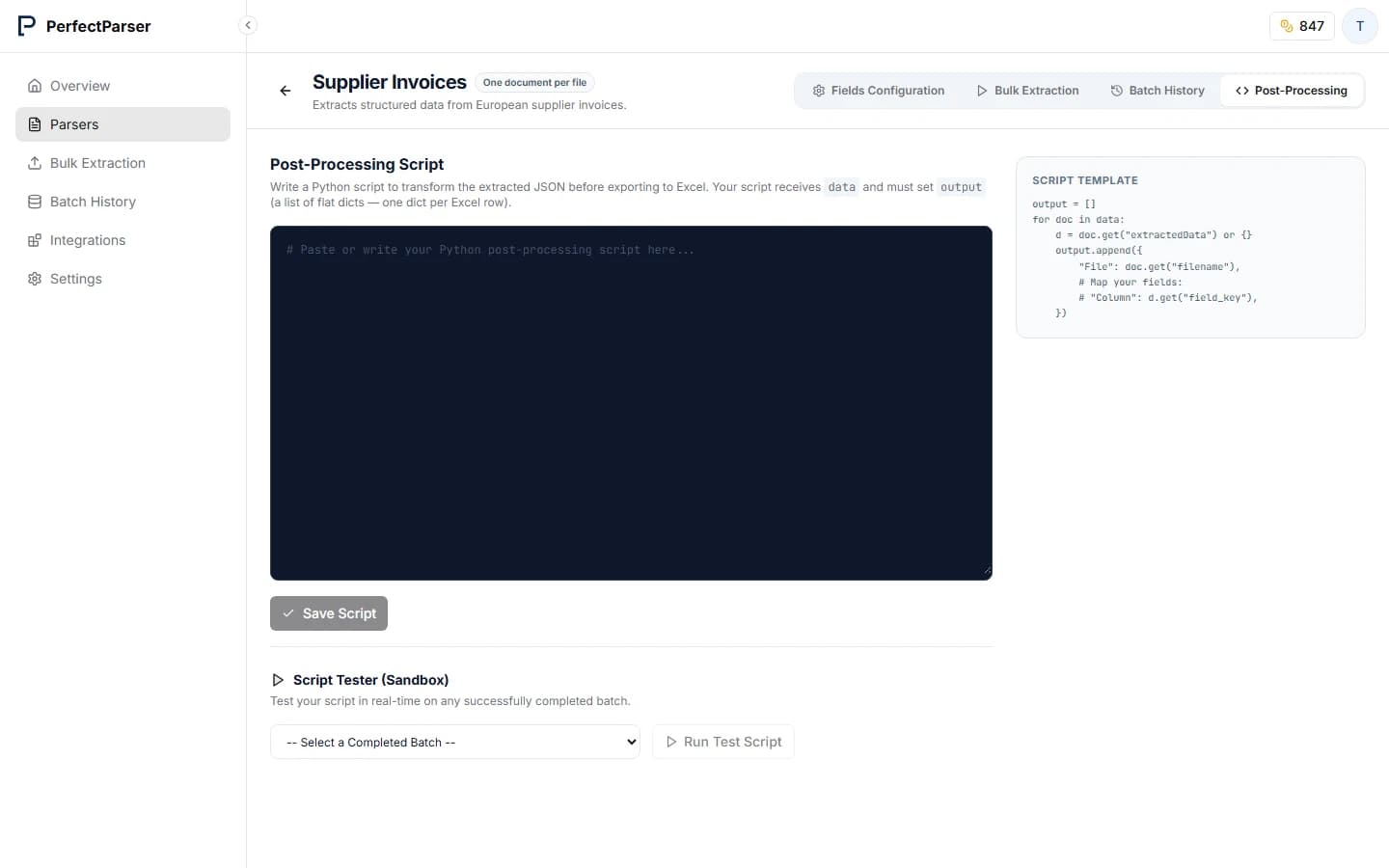
How to open the editor
- Go to Parsers in the left sidebar.
- Open the Parser you want to configure.
- Click the Post-processing tab.
You will see a code editor on the left and a preview panel on the right. Paste one of the templates below, click Run Preview, and check the output before saving.
Ready-to-use templates
Template 1: Rename columns
Use this to rename fields so they match your existing spreadsheet templates. You can change the names in quotes on the left to match your company's spreadsheet column headers.
Template 2: Add custom columns
Use this when your internal accounting system requires extra columns that are not on the document itself (such as a department name, a status label, or today's date).
This is particularly useful when importing into software like QuickBooks, Xero, or Sage that require specific columns to be present in every upload file.
Template 3: Reformat dates
Use this to convert dates into the format your system expects (e.g. DD/MM/YYYY for UK/EU systems).
Saving and exporting
Once your preview looks correct, click Save Script. From now on, whenever you open a batch from this Parser, you will see an Export (Processed) button alongside the standard export options. Click it to download the post-processed version.