Export Results
Download your extracted data as CSV, Excel, or JSON from the dashboard — one document at a time or an entire batch at once.
Once an extraction batch is complete, you can download your structured data in several formats. PerfectParser lets you export an individual document or an entire batch in one click.
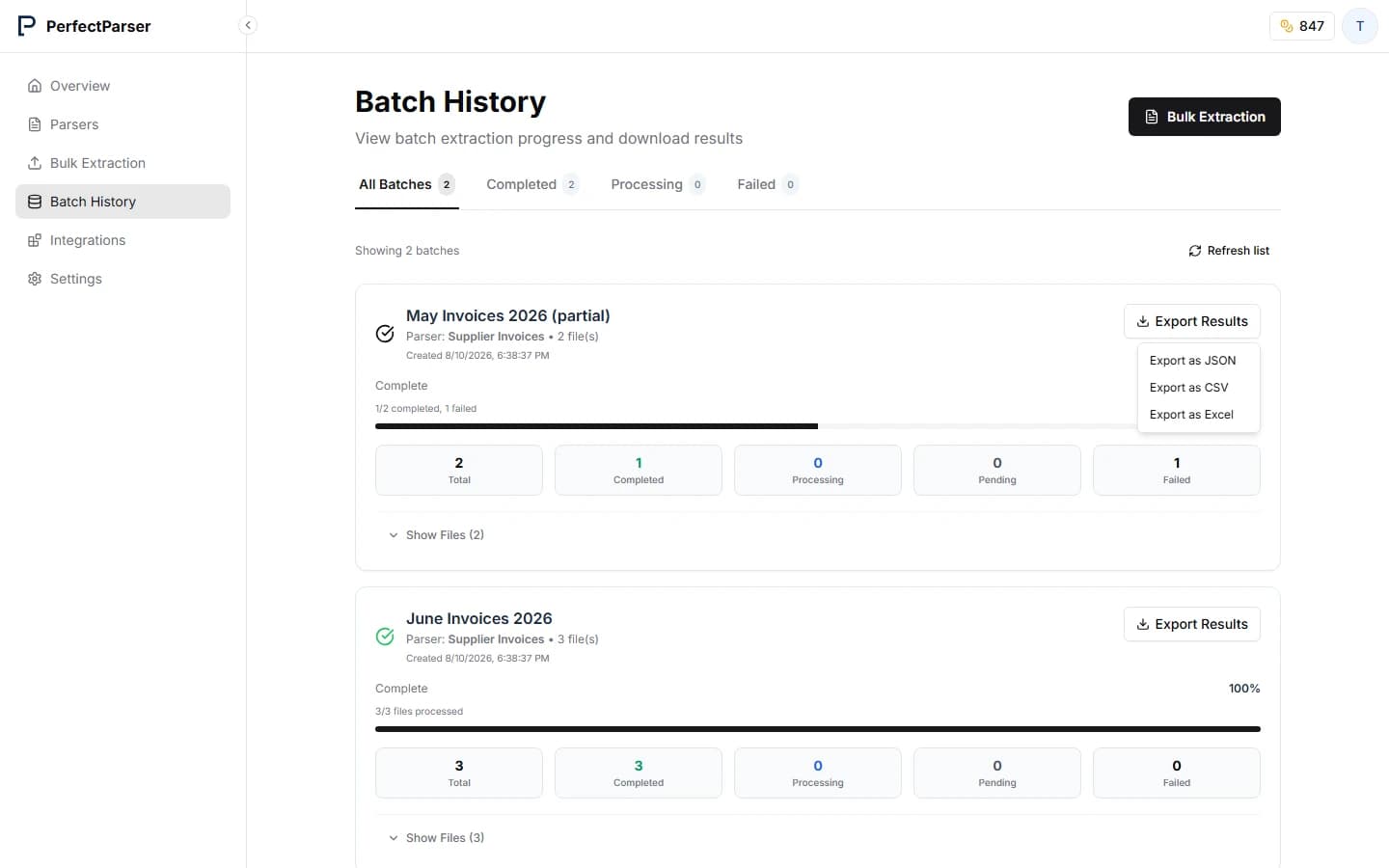
Finding your results
There are two places to view extraction results:
Global Batch History (all Parsers)
Click Batch History in the left-hand sidebar to see every batch you have ever run across all your Parsers, sorted by most recent first. Use this when you want a full overview of your extraction activity.
Parser-level Batch History (one Parser)
Open any Parser from the Parsers list and click the Batch History tab inside it. This shows only the batches that were run through that specific Parser. This is useful when you want to review results for a single document type.
Export formats
| Format | Best for |
|---|---|
| Excel (.xlsx) | Finance teams, reporting, sharing with colleagues |
| CSV | Importing into databases, spreadsheets, or other tools |
| JSON | Keeping nested data structures intact |
Nested data (such as invoice line items) is automatically formatted into separate rows in Excel and CSV exports to make sure your spreadsheets are clean and readable.
Export an entire batch
- Open Batch History (global or parser-level).
- Find the batch you want to export and click on it.
- Click the Export button and choose your format.
PerfectParser will generate a single file containing one row per document (or one row per page, if you chose One document per page).
Export a single document
- Open a batch to see the list of individual documents inside it.
- Click the ⋯ (three dots) menu next to the document you want.
- Choose Export as CSV, Export as Excel, or Export as JSON.
Using post-processing before export
If you have set up a Post-processing script on your Parser, you will see an additional Export (Processed) button. This runs your custom formatting rules first, reshaping and cleaning the data, then downloads the result as Excel.
See Post-processing → for details.