Bulk Extraction
Upload documents individually or in bulk to your Parser and monitor extraction progress in real time from the dashboard.
Once your Parser is configured and saved, you can start processing real documents. You can upload a single file or up to 50 files at once. PerfectParser processes them in the background.
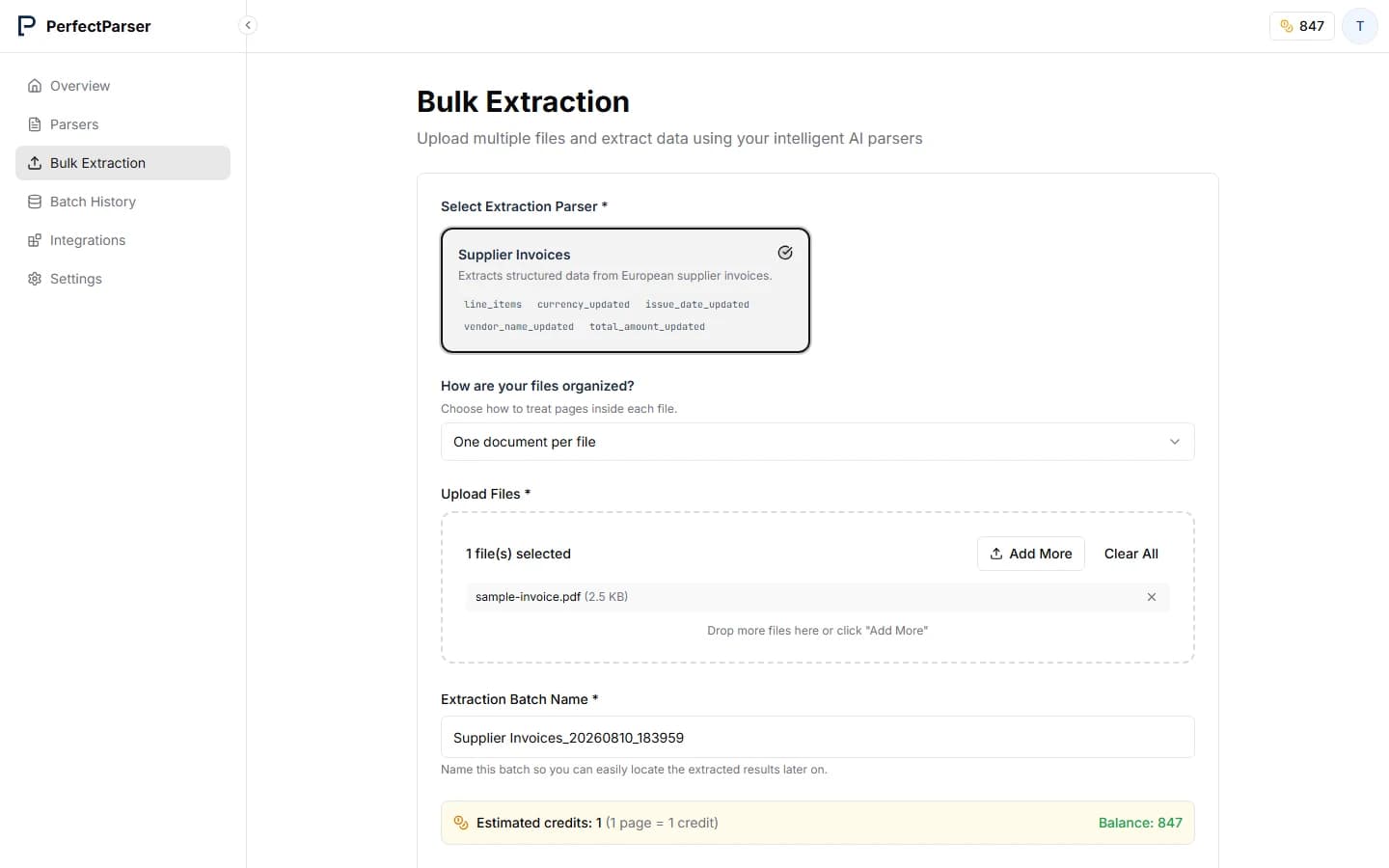
Step 1: Open Bulk Extraction
Click Bulk Extraction in the left-hand sidebar.
Step 2: Select your Parser
Use the Select Parser dropdown to choose which Parser should process your documents. Make sure you pick the one that matches your document type (e.g., Vendor Invoices (EU)).
Step 3: Choose how files are organized
Under How are your files organized?, choose how pages inside each file should be treated:
- One document per file — all pages in a file belong to the same document (most invoices, contracts, and multi-page forms).
- One document per page — each page is a separate document (merged scan batches).
See Credits & Billing for how this affects extracted results. Both modes cost 1 credit per page.
Step 4: Upload your documents
Drag and drop your files onto the upload area, or click Browse Files to select them from your computer.
- Accepted formats: PDF, PNG, JPG, JPEG
- Maximum: 50 files per batch
Optionally, give your batch a name (e.g., June Invoices) to make it easier to find later in your Batch History.
Step 5: Extract your files
Click Extract All Files. PerfectParser will begin processing your documents immediately. You will see a live progress indicator showing how many documents have been completed.
Processing continues in the background even if you close the tab. Come back to the dashboard at any time to check on progress.
Extraction status
Each document moves through the following states:
| Status | Meaning |
|---|---|
| Processing | The AI is reading and extracting data from the document |
| Completed | Extraction finished successfully — data is ready to export |
| Failed | The document could not be read (e.g. it was password-protected or corrupted) |
A batch shows Partial if some documents completed and others failed.