Set up Zapier
Connect PerfectParser to Zapier once, then follow the tutorial for import or export.
Connect PerfectParser to Zapier once, then follow the tutorial for the result you want.
Import documents from Google Drive
Send files from Google Drive into PerfectParser automatically.
Send extracted data to other apps
Send extracted fields to Google Sheets, Slack, or your CRM after processing finishes.
Full automation from Google Drive usually uses two separate Zaps — one to import the file, one to export the results.
The PerfectParser Zapier app is currently invite-only. Contact support for an invite link if you don't see it in the Zapier app directory yet.
Before you start
You need a Zapier account, a configured parser, and one sample document processed in PerfectParser.
Open PerfectParser
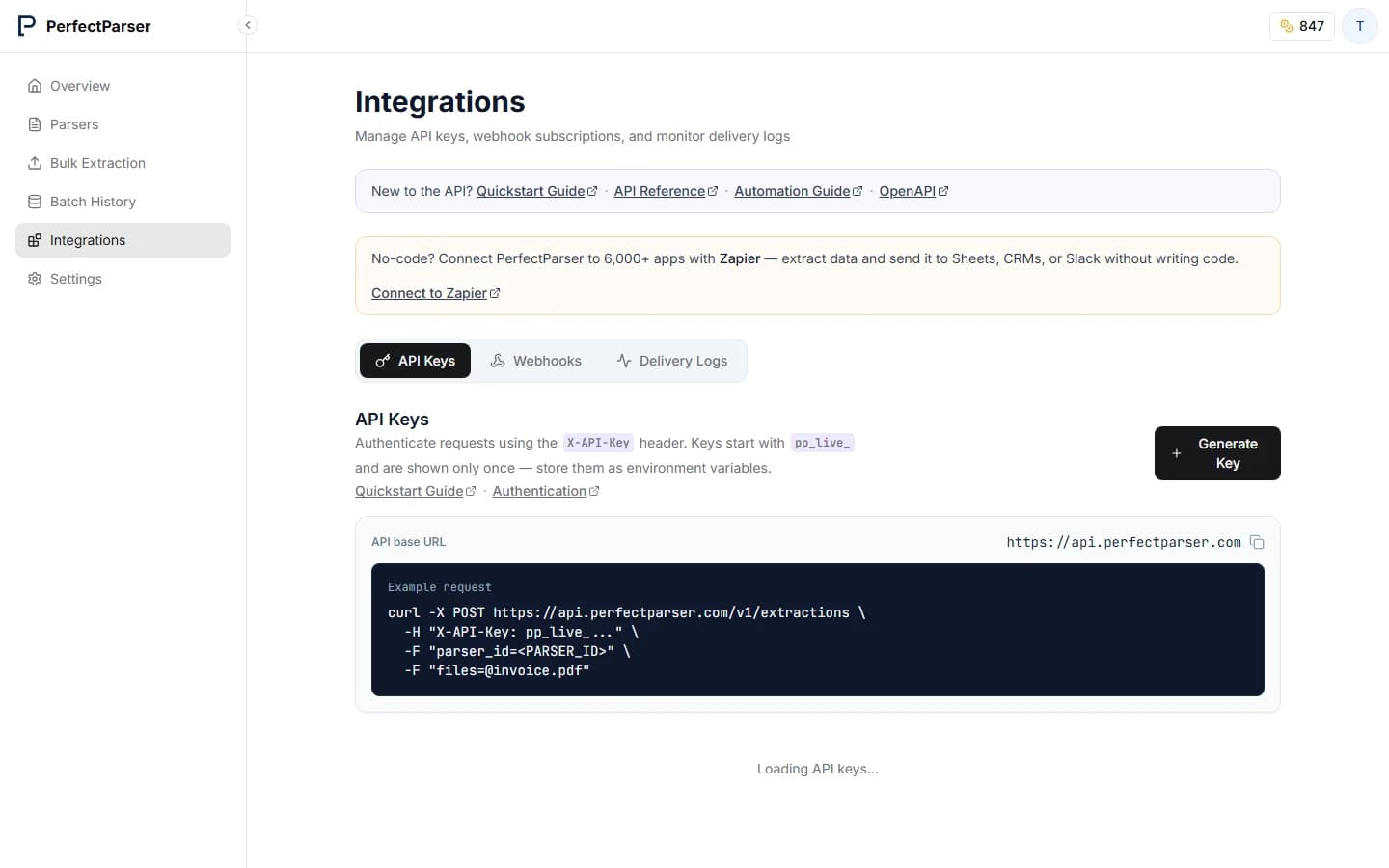
- Open Integrations → API Keys in PerfectParser (dashboard).
- Click Generate Key, label it (for example Zapier), and copy the key immediately — it is shown only once.
Create the connection
- In Zapier, create a Zap and add PerfectParser as a trigger or action.
- When prompted, paste your API key to connect the account.
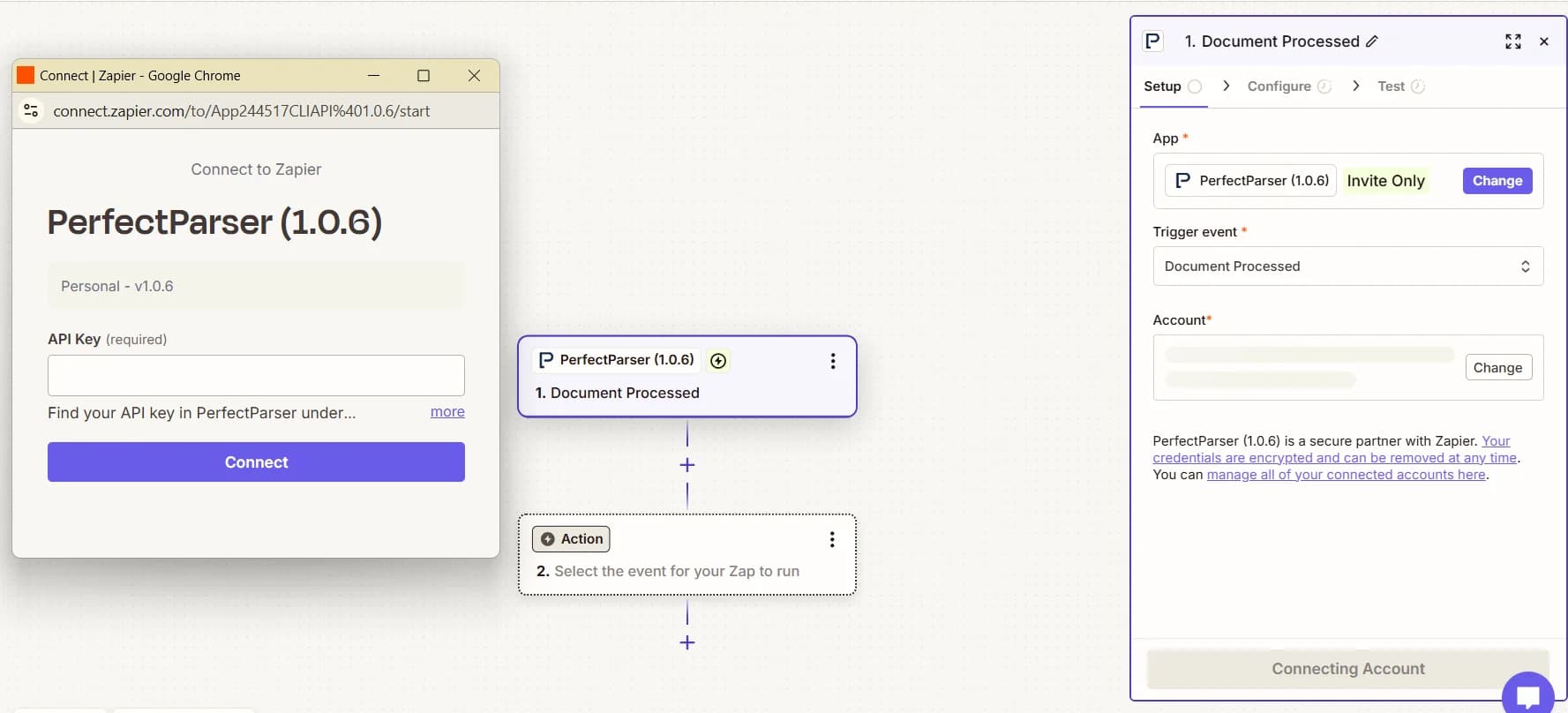
You can reuse this connection in every PerfectParser Zap.
FAQs
Where is my API key?
In PerfectParser, open Integrations → API Keys, click Generate Key, and copy it immediately — the full key is shown only once. Paste that key when Zapier asks you to connect PerfectParser.
Do I need two Zaps?
Only if files arrive from Google Drive. Use one Zap to import files and a second Zap to send extracted fields to Sheets, Slack, or your CRM. If you upload in the PerfectParser dashboard, you only need the export Zap.