Import documents from Google Drive
Create a Zap that sends files from Google Drive into PerfectParser.
Before continuing, connect PerfectParser to Zapier.
Build the import Zap
Add the source app
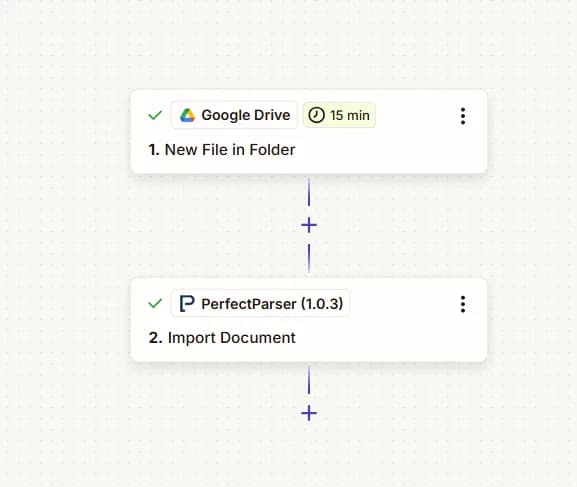
Create a Zap with Google Drive → New File in Folder. Select the folder where your documents land.
Add Import Document
Add an action: PerfectParser → Import Document. Select your saved connection.
Select Parser and Document
- Parser — required. Choose the parser that should process these files.
- Document — map the file from the Google Drive step. In the Zapier UI the field is labeled Document.
Test and publish
Run a test. A successful Import returns immediately with identifiers and status: processing — not filled extraction fields. Publish the Zap so new files submit automatically.
Pair with export
Create a separate export Zap with Document Processed so extracted fields reach your destination app after processing finishes.
What success looks like
The Zap creates one new document in the selected parser whenever a file lands in the watched Google Drive folder.
If it does not work
- Reopen the PerfectParser step if your parser is missing from the dropdown.
- Confirm the Document field is mapped from the Google Drive file, not a text field.
- Check that the file type is supported (PDF, PNG, JPG, DOCX, XLSX, TXT).
- Verify your API key is still active under Integrations → API Keys.
FAQs
Why doesn't Import Document return extracted fields?
Import submits the file and returns immediately with status processing. Extracted fields arrive later on the Document Processed trigger — build the export Zap for that.
Which Google Drive trigger should I use?
New File in Folder works for most setups. Point it at the folder where your documents land and map the file from that trigger into the Document field.
When are credits charged?
Credits are charged when PerfectParser processes the document (per page), not when Zapier queues the Import Document action.