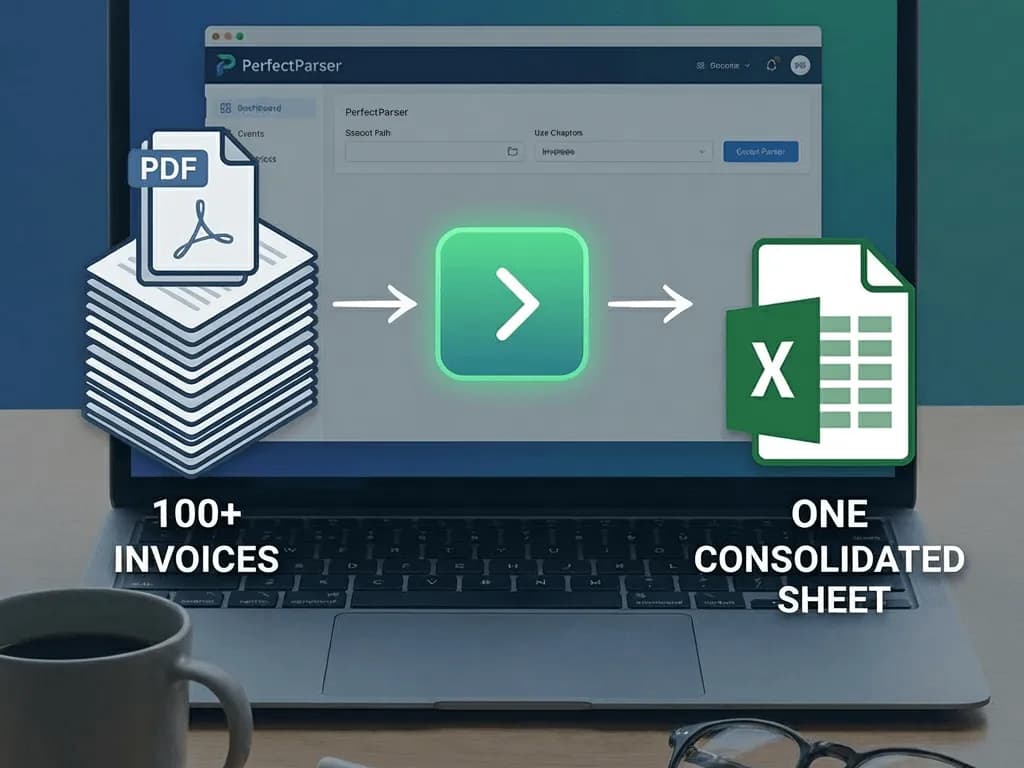
Month-end close for a bookkeeper or CPA often looks like this: a client sends over a folder of 100 invoices from 15 different vendors. Every one is in a different format. AI invoice extraction solves this in under 20 minutes — upload the batch, the AI extracts vendor name, invoice number, totals, and line items from every format without templates, then exports a QuickBooks-ready CSV.
This guide explains exactly how that workflow operates for multi-client bookkeeping practices and what to expect at each step.
The Real Pain of Multi-Vendor Invoice Batches
The fundamental problem with client invoice processing is not volume — it is layout variance.
A client running a small manufacturing business might receive invoices from:
- •A freight carrier using their own custom PDF format
- •A raw materials supplier with a legacy invoicing system
- •A local contractor who sends a Word document saved as PDF
- •An international vendor with amounts in a foreign currency and different tax line structures
Traditional OCR tools require you to build a separate template for each format. When a vendor changes their invoice design — which happens whenever they switch accounting software — the template breaks and produces garbage output.
For a bookkeeper managing 10–15 clients, each with 5–20 vendors, maintaining hundreds of templates is not a workflow. It is a second job.
AI invoice extraction eliminates the template problem entirely. It reads field meaning, not field position — so a new vendor format is not a problem to solve, it is just the next document in the queue.
What Gets Extracted and Why It Matters for QuickBooks
For a QuickBooks import to work cleanly, you need consistent, named columns in a structured file. The fields that matter most for AP workflows are:
When AI extraction pulls these fields accurately from a mixed-vendor batch, the output is a structured CSV where every row represents one invoice and every column maps directly to a QuickBooks import field.
How to Extract Client Invoices with PerfectParser
Step 1: Upload a Sample Invoice
Start by uploading a single sample invoice from your client's batch. This acts as the blueprint for what you want to extract. PerfectParser supports PDF, JPG, PNG files.
Step 2: Generate Your Schema
Based on the sample document, PerfectParser automatically generates an extraction schema. This schema defines the fields to pull (e.g., Vendor Name, Total, Invoice Number). You can review and adjust this schema to ensure it captures exactly the data points you need for QuickBooks. Setup is a one-time step per client.
Step 3: Bulk Upload and Extract
Once your schema is set, upload the rest of the invoice batch. The AI processes every document simultaneously based on your schema, regardless of varying vendor formats or layouts.
Step 4: Export to QuickBooks CSV
Download the extracted data as a CSV from the free Invoice to CSV converter. Then use QuickBooks Online Settings → Import data → Bills and map vendor, dates, amounts, and line items — no re-keying.
Month-End Close Workflow: Before and After
Before Automation
After Automation
The difference is not incremental. It is the difference between month-end taking most of a day and taking part of an hour.
Handling Edge Cases Bookkeepers Actually Encounter
Different Currencies on the Same Batch
AI extraction identifies the currency symbol and code per invoice. The output CSV includes a currency column, so multi-currency batches import cleanly into QuickBooks multi-currency accounts without manual conversion.
Invoices with Partial Payment Histories
Some clients pass along invoices that have already had partial payments applied and show a remaining balance. The AI extracts the original invoice total and any balance-due field separately — you can map whichever is appropriate to the QuickBooks import.
Foreign Tax Structures (VAT, GST)
International vendor invoices often have multiple tax lines (e.g., Base VAT, Reduced VAT, exempt items). The AI extracts each tax line independently with its label and amount, so you can split them correctly in QuickBooks rather than lumping everything into a single tax field.
Very Low Quality Scans
Clients who scan paper invoices on a phone often produce 150 DPI images with skew and shadow. Because PerfectParser utilizes advanced AI vision models rather than rigid OCR templates, it can accurately read and extract data even from poor-quality, skewed, or shadowed images that would cause traditional parsers to fail.
What This Looks Like Across Your Client Portfolio
The efficiency compounds with scale. If you manage 12 clients, each with monthly invoice batches:
- •Before: ~8–10 hours per client × 12 = 96–120 hours/month on invoice data entry alone
- •After: ~20 minutes per client × 12 = ~4 hours/month
That is 90+ hours a month returned to higher-value work — advisory, tax planning, client communication — or the capacity to take on more clients without adding headcount.
The Link Between Extraction Accuracy and QuickBooks Data Quality
This is worth stating explicitly: garbage in, garbage out.
If invoice extraction produces incorrect vendor names, it creates duplicate vendors in QuickBooks. If totals are wrong, it creates reconciliation failures at month-end. If invoice numbers are misread, duplicate payments get through.
Accurate extraction is not just a convenience — it is the foundation of clean books.
By defining a precise schema upfront from a sample document, PerfectParser's AI ensures that the exact required fields are consistently pulled from every subsequent invoice. This structured approach results in a highly accurate QuickBooks import file that drastically minimizes the need for manual cleanup.
Getting Started
The fastest way to evaluate whether this workflow fits your practice is to run a real batch — not a demo with sanitized documents, but actual client invoices.
PerfectParser's free trial includes 20 credits with no credit card required. That is enough to process a full month's invoices for one client and see the output before committing to anything.
Try PerfectParser Free
Extract data from your first documents today. No credit card required — 20 free credits included.
Start Extracting →