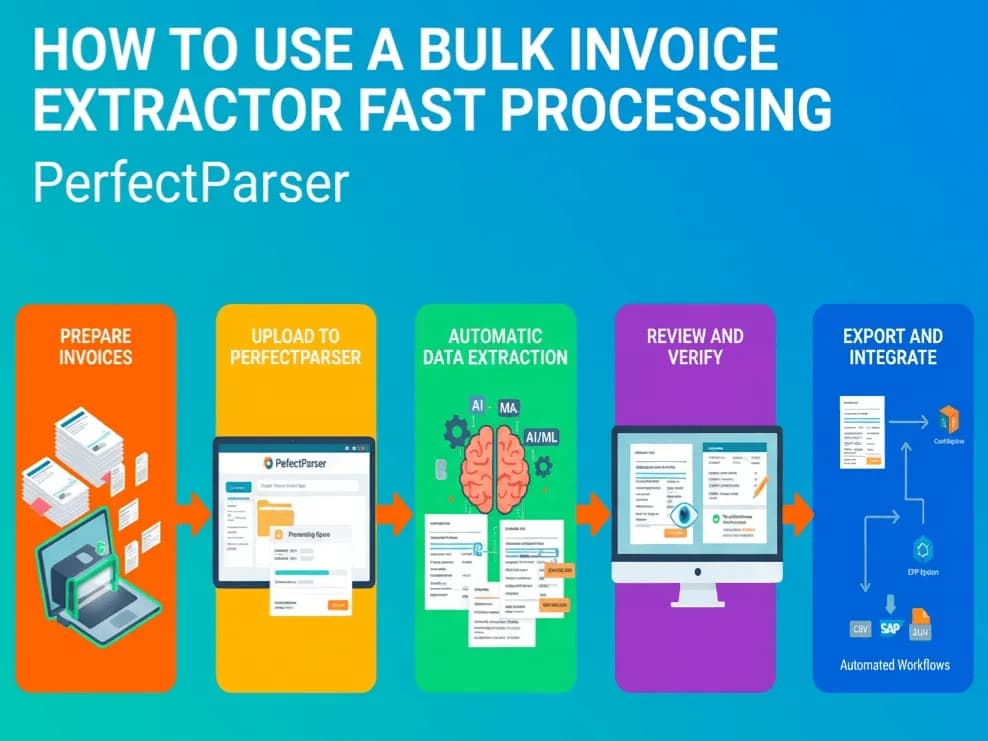
To set up an invoice extraction schema for bulk processing: create a parser configuration in PerfectParser, define your required fields (vendor name, invoice number, date, totals, line items) with exact data types, calibrate on a sample invoice, then submit your batch via dashboard or API. The system processes documents in parallel and strictly validates the output against your schema before export.
This guide covers the complete technical setup for production-scale bulk processing — including field mapping JSON, defining required vs. optional fields, rate limit mechanics, and handling 1,000+ page invoice PDFs.
Before You Build: Understanding What a Schema Actually Controls
An extraction schema is the configuration file that tells the AI what to pull from each document and how to structure the output.
Without a schema, the AI makes autonomous decisions about field names and data types. For a one-off extraction, that is fine. For a bulk workflow feeding into QuickBooks, an ERP, or a database, you need consistent, predictable column names and data types every time — which is exactly what a schema provides.
A schema defines:
- •Which fields to extract (vendor name, invoice number, line items, etc.)
- •Data type for each field (string, number, date, boolean, array)
- •Whether the field is required (missing required fields trigger a validation error)
- •Output format preferences (how dates are formatted, currency handling, decimal notation)
A well-configured schema turns the AI's semantic extraction into a structured, predictable pipeline.
Step 1: Create the Parser
In the PerfectParser dashboard:
- •Navigate to Parsers → New Parser
- •Name the parser for its purpose or client (e.g.,
AP Invoices — Monthly Batch) - •Select Invoice as the document type
Selecting the Invoice document type pre-populates a baseline schema with the most common invoice fields. This saves significant setup time for standard AP workflows.
Step 2: Configure the Schema Fields
Standard Invoice Fields (Pre-Populated)
The baseline invoice schema includes:
vendor_name        string    required
invoice_number     string    required
invoice_date       date      required
due_date           date      optional
subtotal           number    required
tax_amount         number    optional
total_amount       number    required
currency           string    optional (default: USD)
payment_terms      string    optional
Review each field and adjust based on your downstream system's requirements.
Adding Line Items (Variable-Length Array)
Line items are extracted as an array — the length varies per invoice. Configure the line item structure:
line_items         array     optional
  └── description  string    required
  └── quantity     number    optional
  └── unit_price   number    optional
  └── line_total   number    required
Important for bulk processing: If you are exporting to a flat CSV for QuickBooks import, decide whether to flatten line items to separate rows or export them as a JSON column. Flattening is simpler for standard AP workflows; JSON is better for custom integrations.
Adding Custom Fields
If your downstream system requires additional fields — PO number, cost center, project code, GL account — add them as custom fields. The AI will attempt to extract them if present in the document.
For fields that only appear on some invoices:
- •Set them as optional (missing values will be null in the output, not flagged as errors)
- •Do not set them as required (this would flag every invoice that doesn't contain the field)
Data Type Configuration
Data type matters for downstream processing:
- •Dates: Configure your date format preference (ISO 8601 recommended:
YYYY-MM-DD). This prevents format ambiguity in regions where01/02/03is ambiguous. - •Numbers: Specify decimal separator (
.or,for European formats) and whether to strip currency symbols or retain them. - •Currency: If processing international invoices, set
currencyto extract the ISO 4217 code (USD, EUR, GBP) rather than the symbol.
Step 3: Calibrate on Real Documents
Schema configuration is theory. Calibration is where you validate it against reality.
Calibration Process
- •Select 1–3 invoices that represent the diversity in your batch — different vendors, different formats.
- •Upload them as a test batch.
- •Review the extraction output field by field.
- •Identify any systematic misidentifications and update your schema.
Common Calibration Issues
Common calibration issues can be fixed by specifying clearly description of the field.
Vendor name extracted as billing address:
The AI is reading the wrong label. Add a field hint: specify that vendor_name should be the company issuing the invoice, not the bill-to address. Most AI parsers support field-level hints in the schema.
Dates in wrong format:
This often happens with European vendors using DD.MM.YYYY. Set date normalization to output ISO format regardless of input format — the AI reads the date semantically and reformats on output.
Line items partially extracted: Check whether the invoice has multi-page line item tables. Some extraction tools handle pagination poorly. PerfectParser processes multi-page line item tables by tracking table context across page breaks automatically.
Step 4: Handle Rate Limits for Large Batches
How Batch Processing Works
PerfectParser processes batch jobs asynchronously. When you submit a large batch:
- •All documents are queued immediately
- •The system processes them in parallel up to your plan's concurrency limit
- •You poll for status or receive a webhook notification when complete
This means you can submit a 500-invoice batch and come back when it is done — rather than waiting in real time.
Rate Limit Mechanics
Each plan has two limits:
- •Concurrency: Maximum number of documents processed simultaneously
- •Monthly volume: Total documents per billing period
If you submit a batch that would exceed your per-minute concurrency limit, the system queues the excess automatically — it does not return an error or drop jobs. You will simply see the batch progress more slowly through the status panel.
Practical Tips for Large Batches
For 1,000+ page PDFs:
Large PDFs are processed page-by-page in parallel. A 1,000-page PDF containing 1,000 single-page invoices processes in roughly the same wall-clock time as 1,000 individual single-page files — the AI handles pagination automatically.
However, if you have a choice, uploading individual files is preferable to one monolithic PDF because:
- •Failed pages can be retried individually without reprocessing the entire file
- •The status panel shows per-document progress rather than per-page progress
- •File naming makes output organization clearer
Step 5: Export and Post-Processing
Export Formats
Validating Output Before Downstream Import
Before importing to QuickBooks or an ERP, run a basic validation:
- •Required fields are non-null: Any row with a null required field failed extraction — investigate before importing.
- •Invoice number uniqueness: Duplicates in the output indicate either duplicate files in the input batch or a genuine duplicate invoice.
- •Total = subtotal + tax: A simple arithmetic check catches any mathematical discrepancies on the original invoice.
These checks take minutes in Excel or a simple script and prevent data quality issues in your accounting system.
Schema Template for Standard AP Invoice Processing
Here is a complete schema configuration for a standard AP invoice workflow:
{
  "parser_name": "AP Invoice Extractor",
  "document_type": "invoice",
  "fields": [
    { "name": "vendor_name", "type": "string", "required": true },
    { "name": "vendor_tax_id", "type": "string", "required": false },
    { "name": "invoice_number", "type": "string", "required": true },
    { "name": "invoice_date", "type": "date", "required": true, "format": "YYYY-MM-DD" },
    { "name": "due_date", "type": "date", "required": false, "format": "YYYY-MM-DD" },
    { "name": "po_number", "type": "string", "required": false },
    { "name": "currency", "type": "string", "required": false, "default": "USD" },
    { "name": "subtotal", "type": "number", "required": true },
    { "name": "tax_amount", "type": "number", "required": false },
    { "name": "total_amount", "type": "number", "required": true },
    {
      "name": "line_items",
      "type": "array",
      "required": false,
      "item_schema": {
        "description": { "type": "string", "required": true },
        "quantity": { "type": "number", "required": false },
        "unit_price": { "type": "number", "required": false },
        "line_total": { "type": "number", "required": true }
      }
    }
  ],
  "output": {
    "format": "csv",
    "date_format": "YYYY-MM-DD",
    "decimal_separator": ".",
    "currency_in_field": true
  }
}
What to Expect in Production
For a well-configured schema on a typical mixed-vendor AP invoice batch:
- •Straight-through processing rate: 98%+ of invoices conform perfectly to the required schema.
- •Error rate: Less than 2% of documents trigger validation errors (usually due to missing fields or extremely poor scan quality).
- •Processing speed: Under 5 seconds per invoice at standard concurrency.
At these rates, a 500-invoice monthly batch takes approximately 5-10 minutes to process entirely automatically — down from 50–80 hours manually.
Next Steps
For a deeper look at the AI technology underlying the extraction — specifically how it handles layout variance and why it outperforms template OCR on mixed-vendor batches — see Invoice OCR vs AI Invoice Parsing: What's the Difference?.
For the full AP automation workflow including validation, approval routing, and ERP posting, see How AP Teams Use Invoice Extraction to Eliminate Manual Data Entry.
Try PerfectParser Free
Extract data from your first documents today. No credit card required — 20 free credits included.
Start Extracting →