
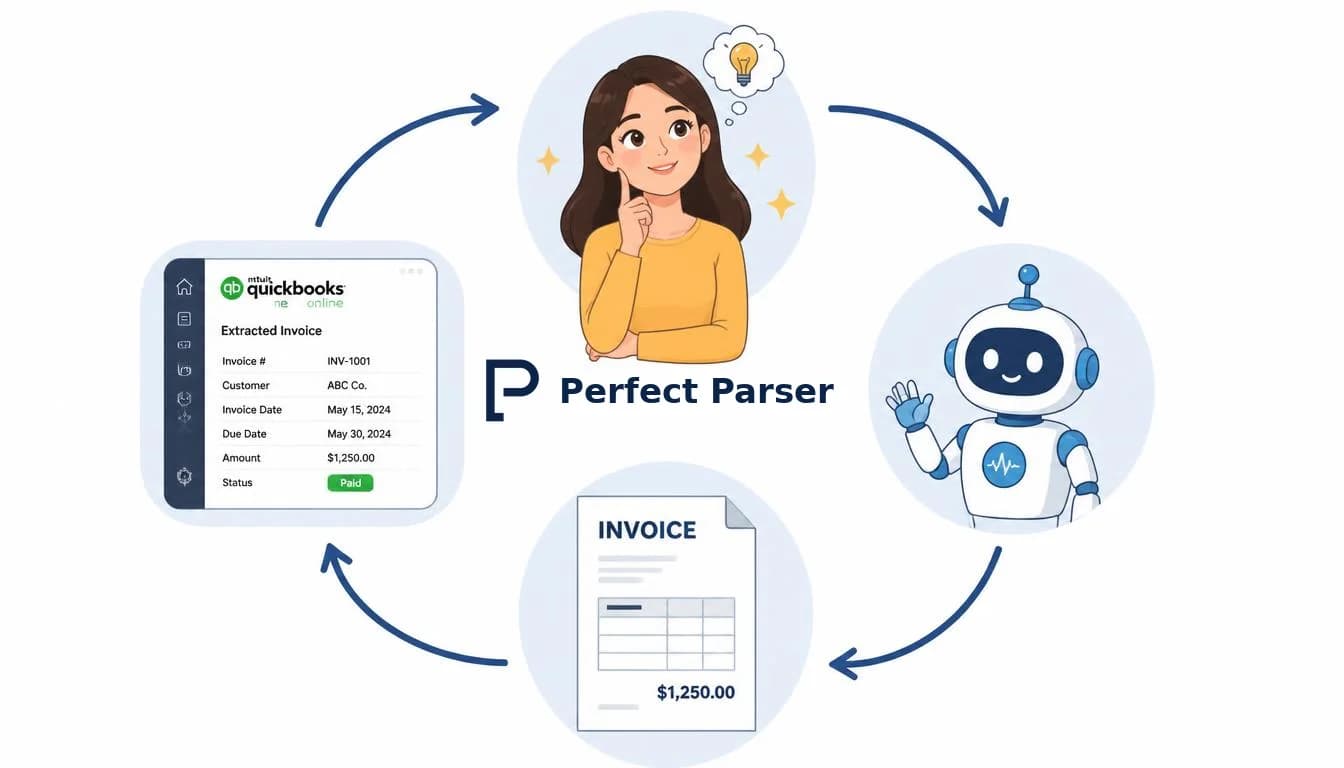
Quick answer: To automate QuickBooks Online bills with Zapier, connect PerfectParser as the trigger app using the Document Processed event, and select QuickBooks Online as the action app with the Create Bill event. Zapier automatically maps extracted fields (vendor name, invoice number, due date, line items, and totals) straight into QBO without manual data entry or coding.
Still Copying Data by Hand in 2026?
Manual invoice data entry feels like driving a horse cart in an era of high-speed transit. It still works, but it is slow, error-prone, and burns valuable hours every week. Typing numbers by hand makes typos inevitable—leading to mismatched reconciliations, duplicate payments, and stressful audits.
In this guide, you will see how Zapier, QuickBooks Online, and PerfectParser work together to automate your accounts payable workflow. By connecting an AI OCR tool directly to QuickBooks Online, incoming invoices and receipts are instantly parsed and created as structured bills—with zero coding required.
Whether you are a freelancer, run a growing business, or manage finance in a larger organization, automating repetitive bookkeeping keeps your accounts up to date in real time and frees your team to focus on high-value business growth.
Manual Data Entry vs. Automated Data Entry
What Is Manual Data Entry?
Manual data entry is the traditional accounting method: an employee opens each invoice or receipt PDF, reads every line, and types the values one by one into accounting software such as QuickBooks.
This work is exhausting. Attention naturally declines during long, repetitive typing sessions, causing subtle transcription mistakes that often stay hidden until month-end close or tax filings.
What Is Automated Data Entry?
This is where the real change happens. Automated data entry removes the repetitive typing burden from your team. Fields are extracted from documents automatically by an AI model and routed to QuickBooks exactly as expected.
Accounting staff are not replaced—instead, their focus shifts from tedious keyboard entry to review, exception handling, and financial analysis. Once published in Zapier, the workflow runs in the background 24/7.
Manual vs. Automated Data Entry: A Side-by-Side Comparison
The table below shows how manual data entry stacks up against an automated workflow built with PerfectParser, Zapier, and QuickBooks Online.
What This Comparison Means for Your Business
- Speed and time savings: An automated workflow operates continuously. As soon as an invoice lands in your parser, PerfectParser extracts the fields and Zapier posts them to QuickBooks Online.
- Accuracy: Automation applies the exact same parsing and field mapping rules to every document. Your team verifies output rather than creating entries from scratch.
- Cost: At roughly $19 per hour for manual data entry versus ~$0.19 per page for AI extraction, automated ingestion is significantly cheaper for any business handling dozens or hundreds of monthly invoices.
- Scalability: Doubling your invoice volume does not require doubling your headcount. The same Zap and parser handle bulk processing seamlessly.
Which Method Should You Choose?
Manual entry can still make sense for very small, occasional volumes, such as a handful of documents a month. However, for organizations handling invoices, receipts, or purchase orders regularly, adopting modern accounting automation tools and dedicated invoice automation software saves dozens of hours, drastically cuts overhead, and eliminates tedious typing errors.
QuickBooks Automation: Moving Beyond Manual Bill Entry
QuickBooks Online is the backbone of small and medium business bookkeeping. It manages transactions, reconciles accounts, tracks vendor histories, and produces financial statements. However, QuickBooks cannot natively parse unstructured PDFs, phone photos, or handwritten bills dropped into an inbox.
That is where an end-to-end automation stack comes in:
- AI Document Extraction (PerfectParser): An AI document parser that extracts key fields—such as vendor name, invoice date, due date, invoice number, and line totals—from digital PDFs, scans, and images in seconds.
- No-Code Automation (Zapier): Connects apps using simple trigger-and-action logic without requiring software developers.
- Accounting Ledger (QuickBooks Online): Automatically receives the extracted fields and creates a ready-to-pay Bill in your accounts payable ledger.
How to Scan and Import Invoices into QuickBooks Online with Zapier
Prerequisites
Before you begin, make sure you have:
- An account on PerfectParser, with a parser created for your invoices.
- An account on Zapier.
- An account on QuickBooks Online.
Step 1: Create a Zap
Log in to Zapier. On the top-left navigation, click Create, then select Zap to begin building your automated workflow.
Select Document Processed as the trigger event.
Step 2: Set PerfectParser as Your Trigger App
In the Zap editor, click the trigger node and search for PerfectParser. Enter your API credentials from your PerfectParser account to authenticate the connection.
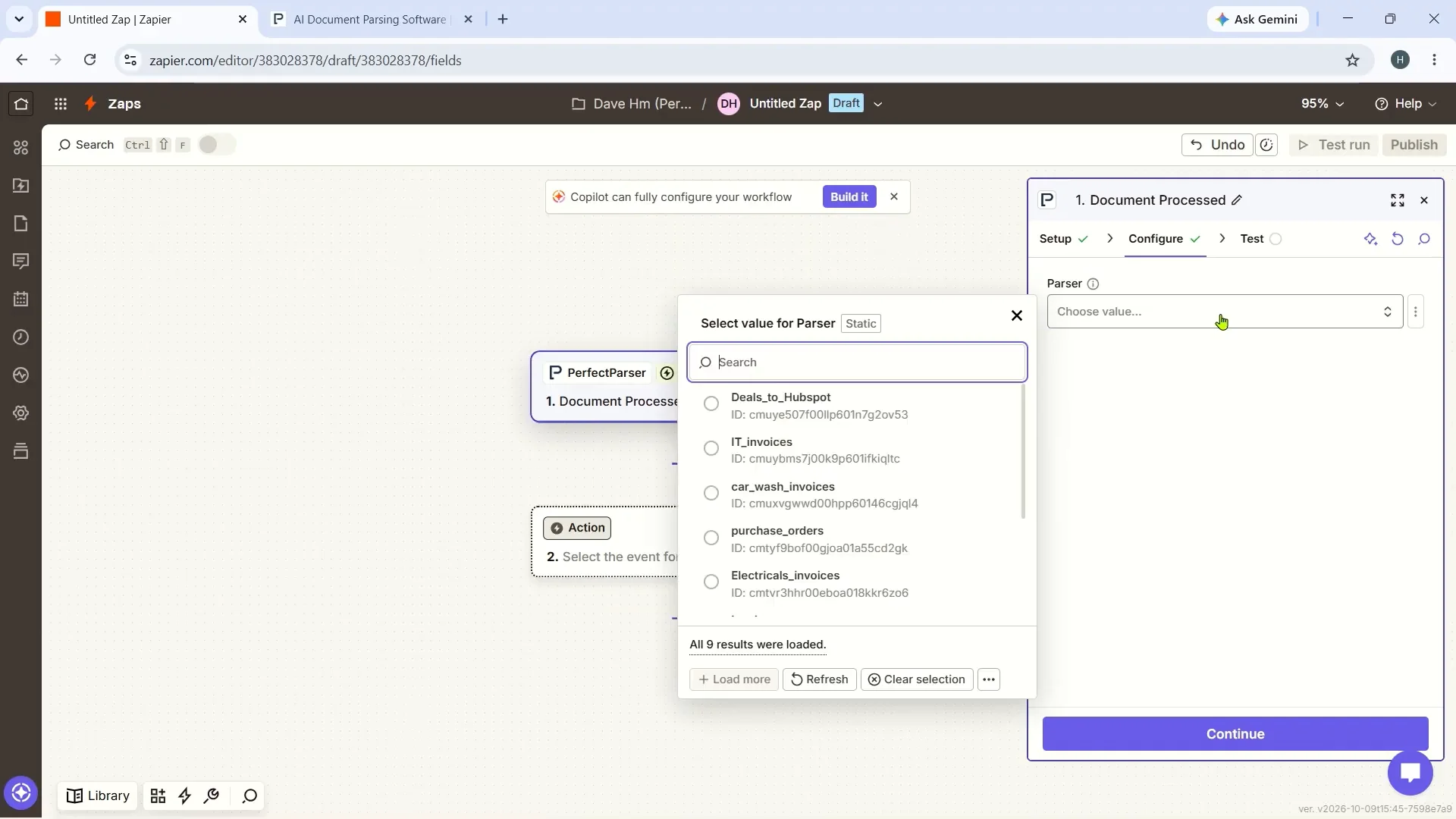
In the Configure tab, open the dropdown and select the parser you created for this workflow. Click Test to ensure sample document data passes successfully to Zapier.
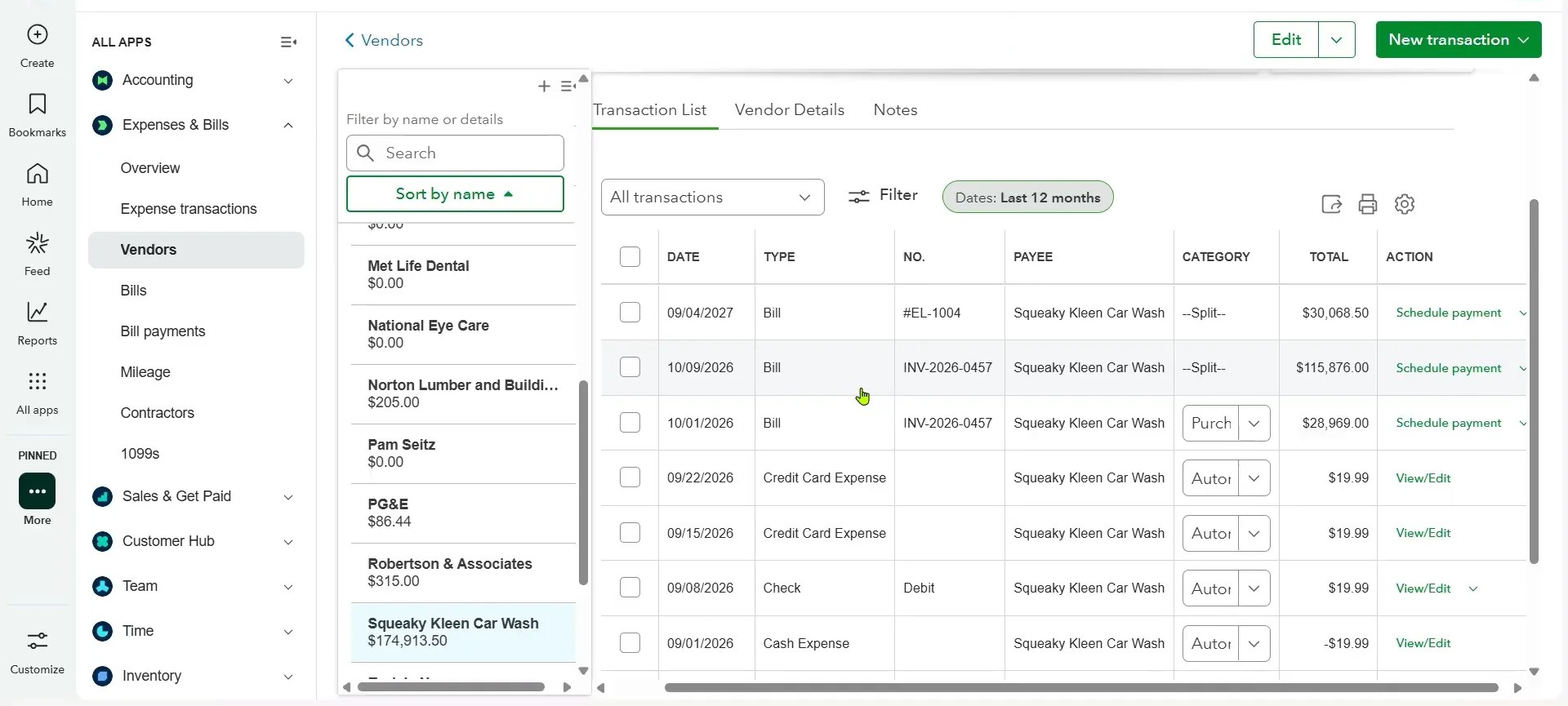
If sample records do not appear, verify that your API key is active in your PerfectParser dashboard and test the connection again.
Step 3: Set QuickBooks Online as Your Action App
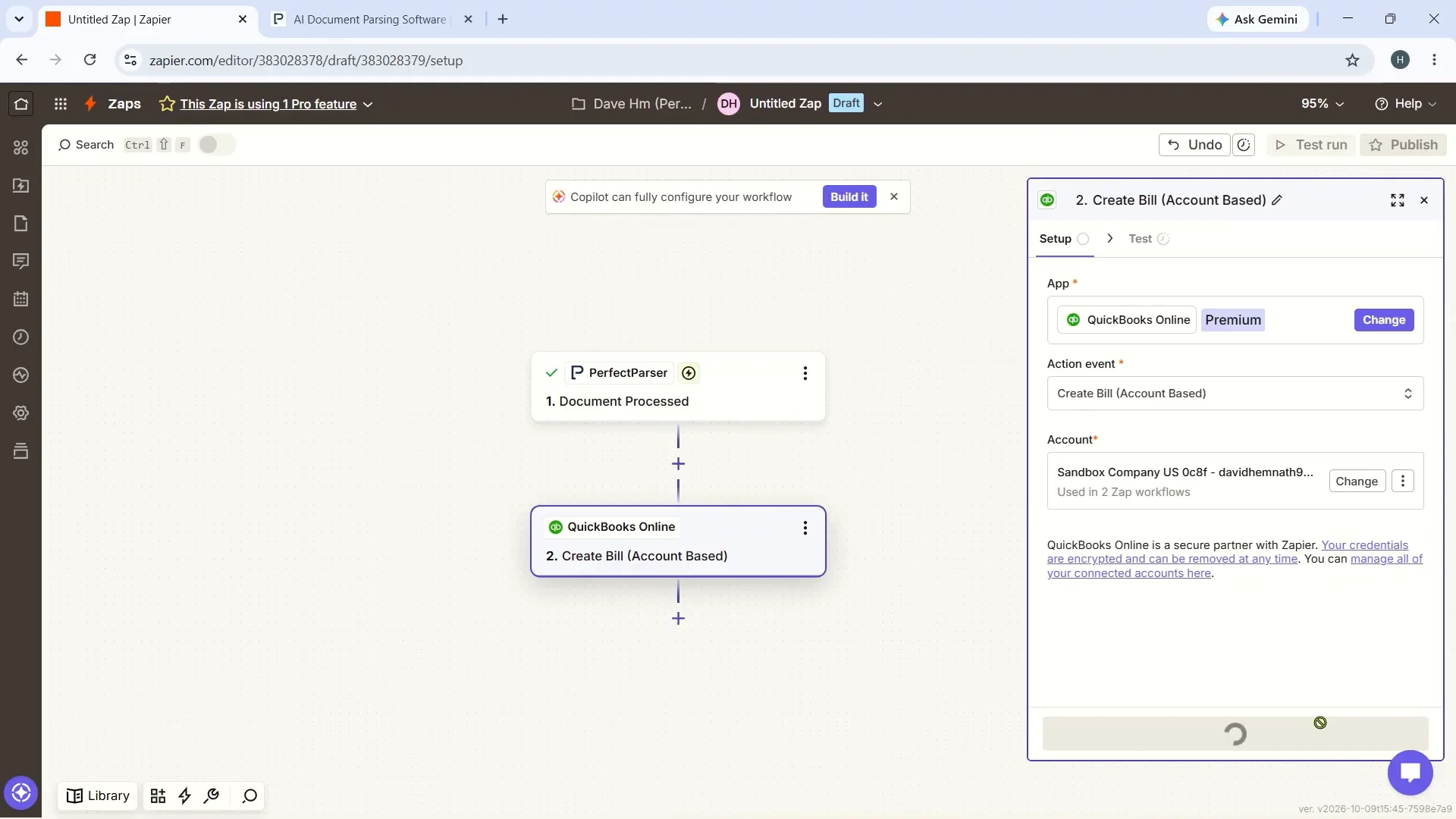
Click the action node and select QuickBooks Online by Intuit. Connect your QuickBooks Online account to authorize Zapier to create accounting records.
Select Create Bill (Account Based) as the action event.
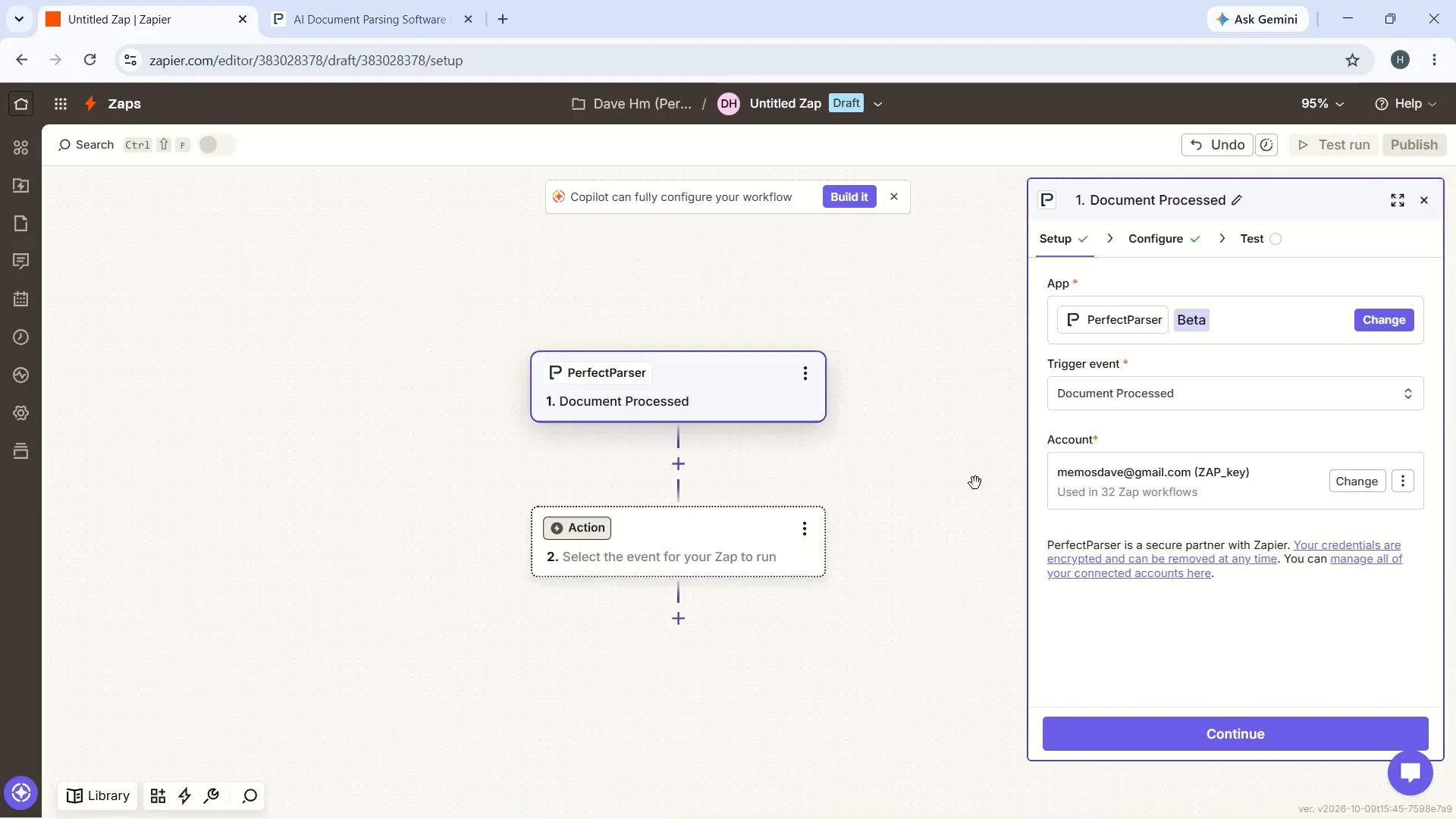
In the Configure tab, map the extracted PerfectParser fields to your corresponding QuickBooks fields. Fields marked with an asterisk are required.
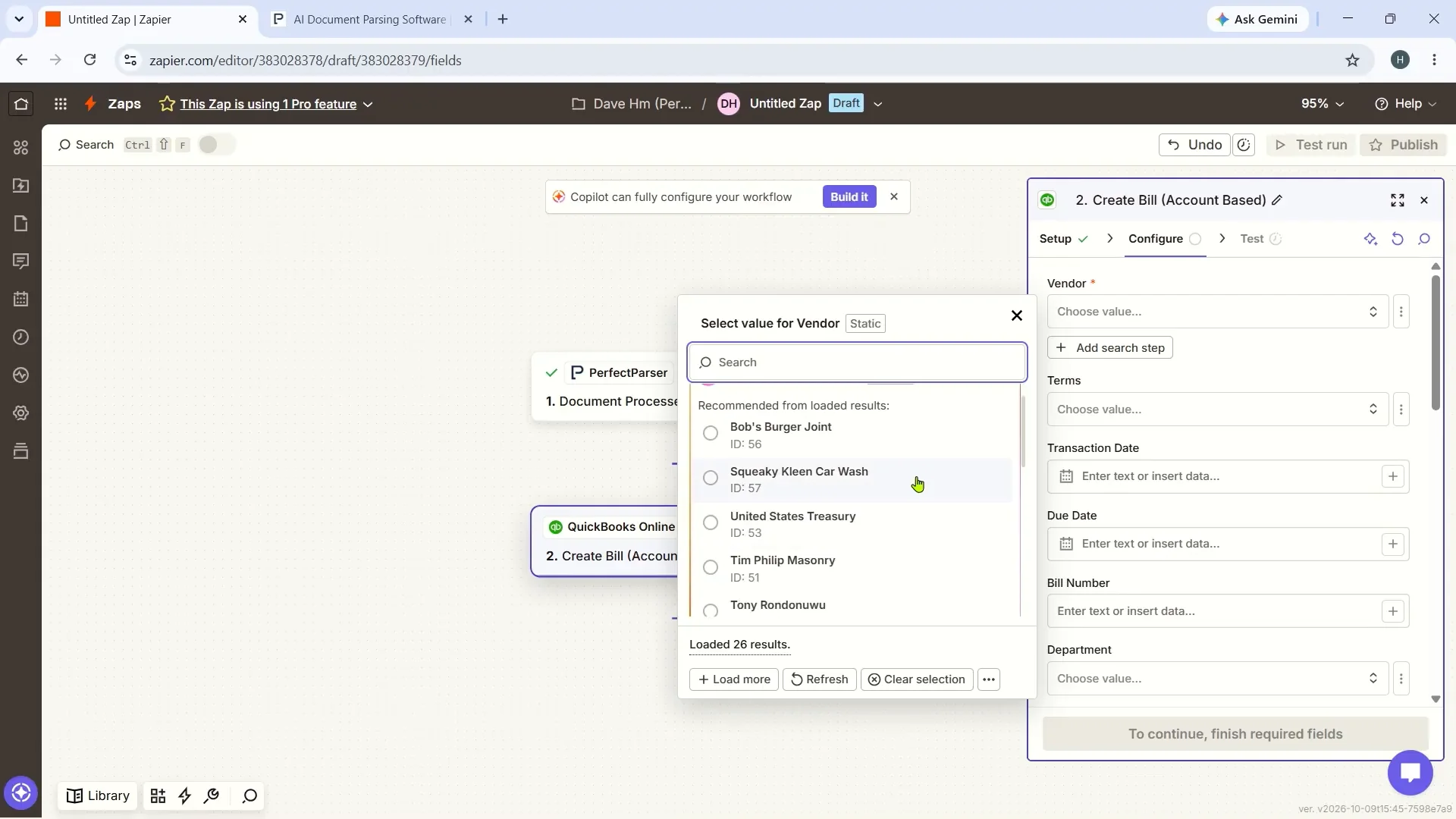
Field Mapping Reference
Next, click Test step to verify the data transmission. QuickBooks Online will generate a test bill with your mapped values.
Step 4: Publish Your Zap
Once the test bill appears in QuickBooks Online with the correct vendor, dates, and amounts, your automated pipeline is verified. Click Publish, name your Zap, and activate it.
From this point forward, whenever a new invoice or receipt is uploaded and processed in PerfectParser, Zapier creates the bill in QuickBooks Online automatically—taking just 30 seconds to 120 seconds per document from upload to ledger entry.
Troubleshooting Common Zapier & QuickBooks Errors
Even with no-code workflows, minor mapping discrepancies can interrupt data flow. Below are the most common errors and how to resolve them:
Conclusion
Manual data entry is slow, tiring, and prone to errors that surface at the worst possible moment. By combining PerfectParser for AI OCR extraction, Zapier for no-code automation, and QuickBooks Online for bookkeeping, you can turn invoices into accounting entries in minutes, without typing anything by hand.
The setup takes only four steps, works for businesses of any size, and frees your team for the work that grows your business. If you are still copying data by hand in 2026, now is the time to switch to automation. Create your parser, connect your Zap, and let the workflow do the typing for you.
For bookkeepers and CPAs managing multiple client accounts who prefer batch-processing monthly invoice folders into CSV without Zapier, see our dedicated guide to QuickBooks invoice data extraction for bookkeepers. You can also explore our core invoice data extraction solution or track payment due dates with our vendor invoice tracker.
Ready to Automate Your QuickBooks Bills?
Connect PerfectParser to Zapier and turn emailed invoices and receipts into structured QuickBooks Online bills in under 2 minutes.
Build Your QuickBooks Zap Free →20 free document credits · No credit card required
