
Copying data by hand is exhausting, especially when you have a lot of it. You no longer need to copy values and type them into a spreadsheet yourself. It's time to free up your day. The work gets done in minutes, without the typos and mistakes that come with manual entry, and it requires zero coding knowledge.
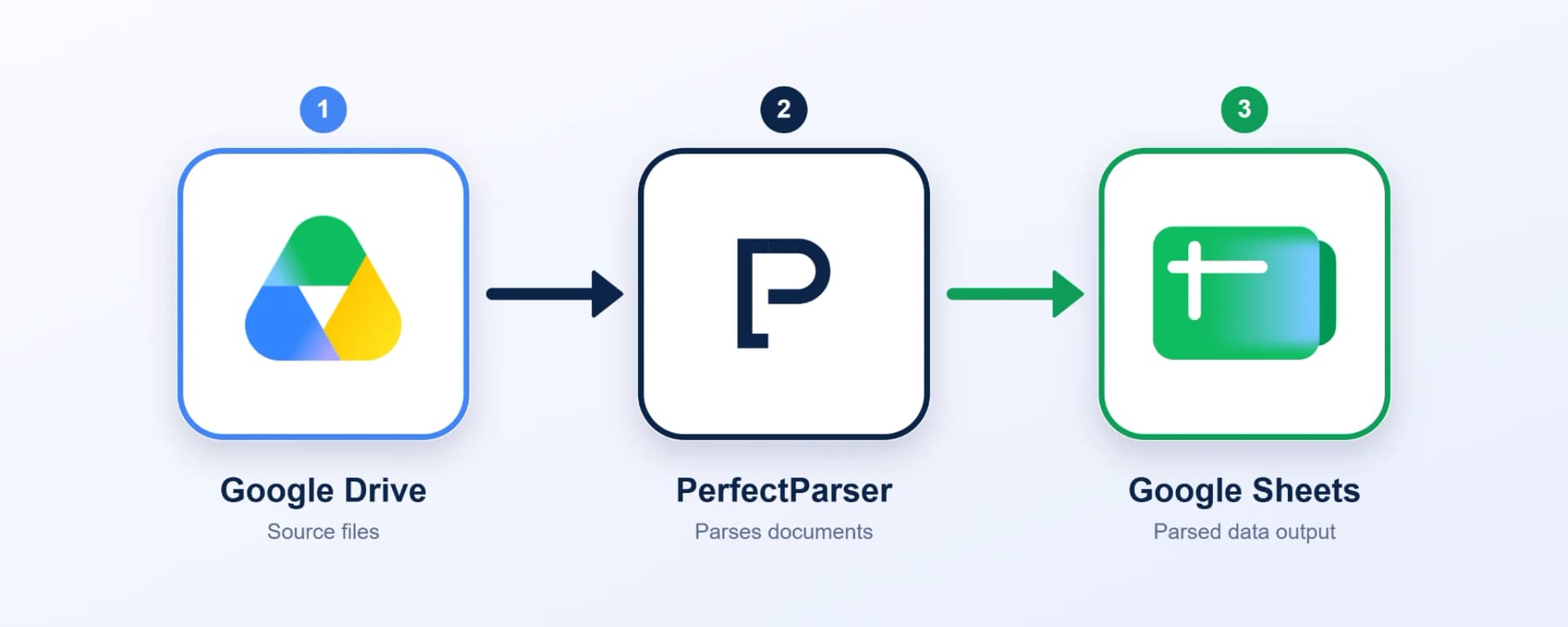
In this workflow, we'll work with Google Drive, PerfectParser, and Google Sheets. Whenever a document is added to your Drive, it is sent to PerfectParser, which extracts the data. The extracted data is then added to your Google Sheet automatically.
Quick Summary: To automate document processing from Google Drive to Google Sheets, create two connected Zaps in Zapier: Zap 1 monitors a dedicated Google Drive folder and imports new document uploads into PerfectParser for automated AI field extraction. Zap 2 listens for completed documents in PerfectParser and writes the extracted fields (such as invoice numbers, line items, and totals) directly into Google Sheets as new rows.
Why Zapier?
Running a small business without technically strong team members? No worries, Zapier is here for you!
Zapier's core philosophy is simple: automation should be available to everyone, with no coding required. The company has delivered on this promise with an interface that is clean, simple, and easy to understand. Even someone with a completely non-technical background can pick it up and start automating in no time.
When Should You Use This Workflow?
This workflow is a great fit when:
- You handle different kinds of documents, such as invoices and purchase orders, and need the data from them organized in one spreadsheet.
- You're working against a deadline. Instead of typing or copying every value by hand, you can get it done in minutes.
- Your team isn't very technical. Not everyone on your team needs to know how to code. Zapier automates a wide range of workflows without a single line of code.
Native Google Drive OCR vs. Automated AI Document Processing
Many teams initially attempt to use built-in Google Drive OCR by right-clicking incoming files and selecting Open with Google Docs. While native Drive OCR converts plain text images into editable docs, it quickly breaks down on structured business files:
- Loss of Tabular Layouts: Table rows, column alignments, and line items get merged into unstructured paragraphs.
- No Key-Value Extraction: Native OCR cannot isolate discrete entities like
invoice_no,due_date, orsubtotal. - Manual Re-Keying Remains: You still have to copy and paste values individually into spreadsheets.
Connecting Google Drive to an AI extraction engine like PerfectParser through Zapier eliminates these constraints. PerfectParser serves as one of the best document automation tools for converting raw Drive uploads into clean, mapped spreadsheet rows automatically.
Comparing Document Ingestion Models: Building an Automated Document Workflow
Ready? Let's get started!
Understanding the Structure
To get this done, we'll create two Zaps in Zapier.
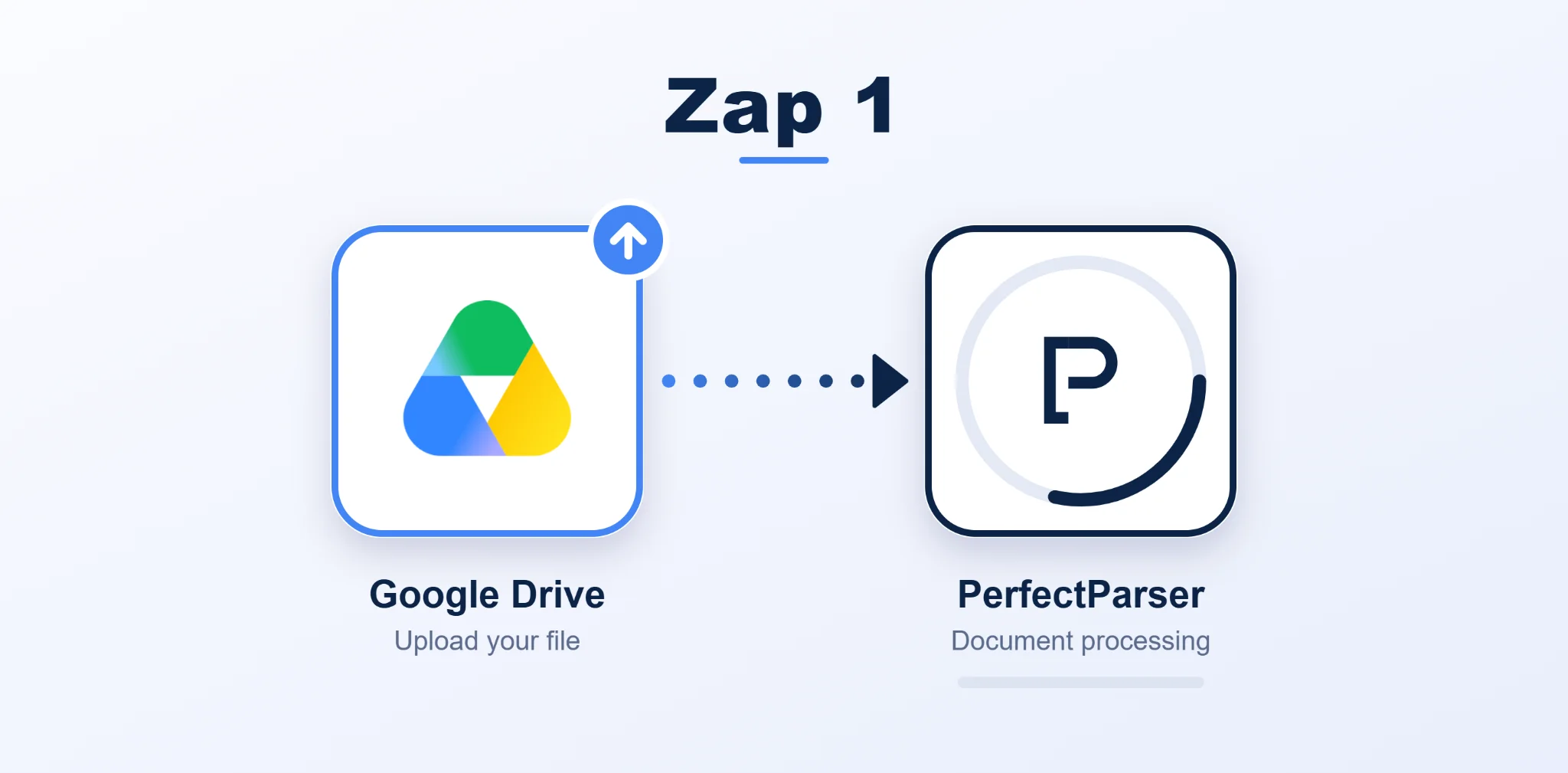
Zap 1: Google Drive → PerfectParser
- Trigger app: Google Drive. This is where you upload your files.
- Action app: PerfectParser. Whenever a new document is added to your Google Drive, this Zap sends it to PerfectParser for processing.
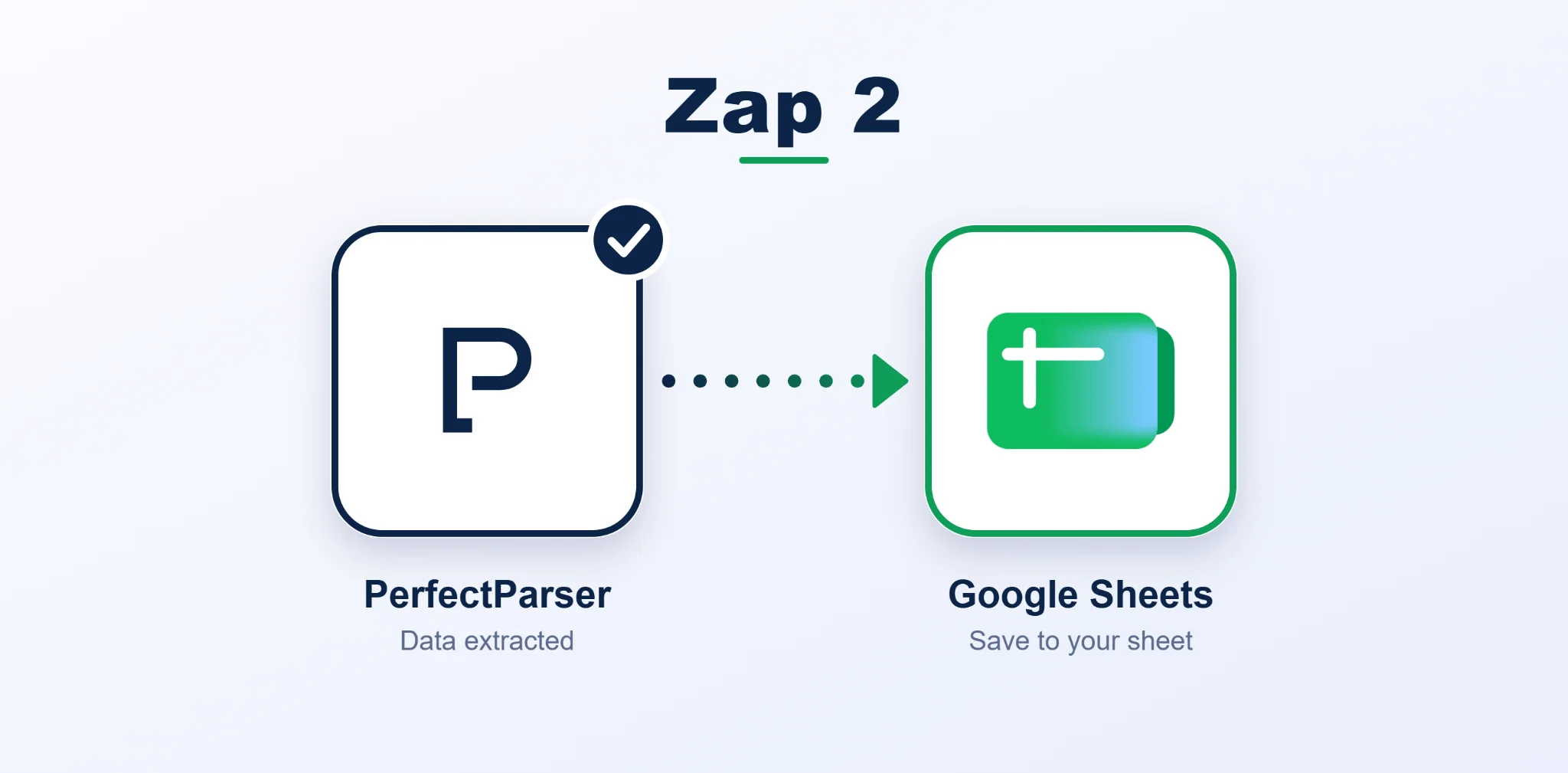
Zap 2: PerfectParser → Google Sheets
- Trigger app: PerfectParser. This Zap picks up the extracted data once a document has been processed.
- Action app: Google Sheets. The extracted data is added here as a new row.
Prerequisites
Before you start, make sure you have accounts on all three platforms:
- PerfectParser: Log in to your PerfectParser account. If you don't have one, sign up first, since an account is required to get started. (See the PerfectParser guide and Zapier integration documentation for more details.)
- Zapier: Log in to your Zapier account, or sign up if you're new, so you can start building your workflows.
- Google Drive: Log in to your Google Drive and set up two things:
- A folder where you'll upload your documents.
- A Google Sheet where the extracted results will be added.
- Important: Keep the Google Sheet outside the upload folder. If the sheet is inside that folder, it can cause errors.
Video Walkthrough
Prefer a visual guide? Watch the step-by-step video tutorial on automating end-to-end document processing from Google Drive to Google Sheets:
Starting the Workflow: Zap 1 (Google Drive to PerfectParser)
Step 1: Create a new Zap
Log in to your Zapier account and click Create Zap. This takes you to the canvas page, where you can set up your trigger and actions.
Since this workflow uses two Zaps, start with Zap 1 (Google Drive → PerfectParser).
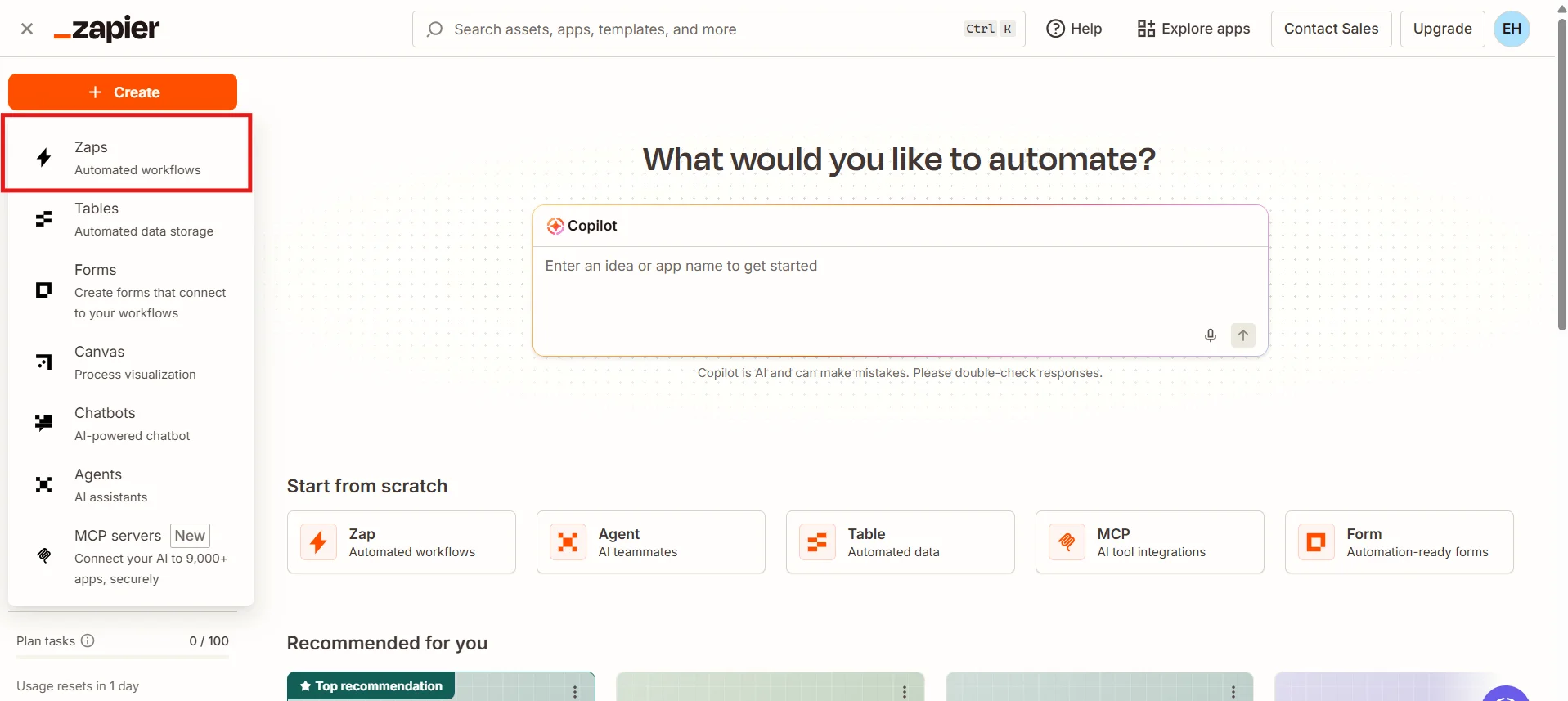
Step 2: Set Google Drive as your trigger
This is your canvas page, where you'll build your Zap. Set your trigger node to Google Drive, and make sure your Google Drive account is connected by logging in when Zapier asks you to.
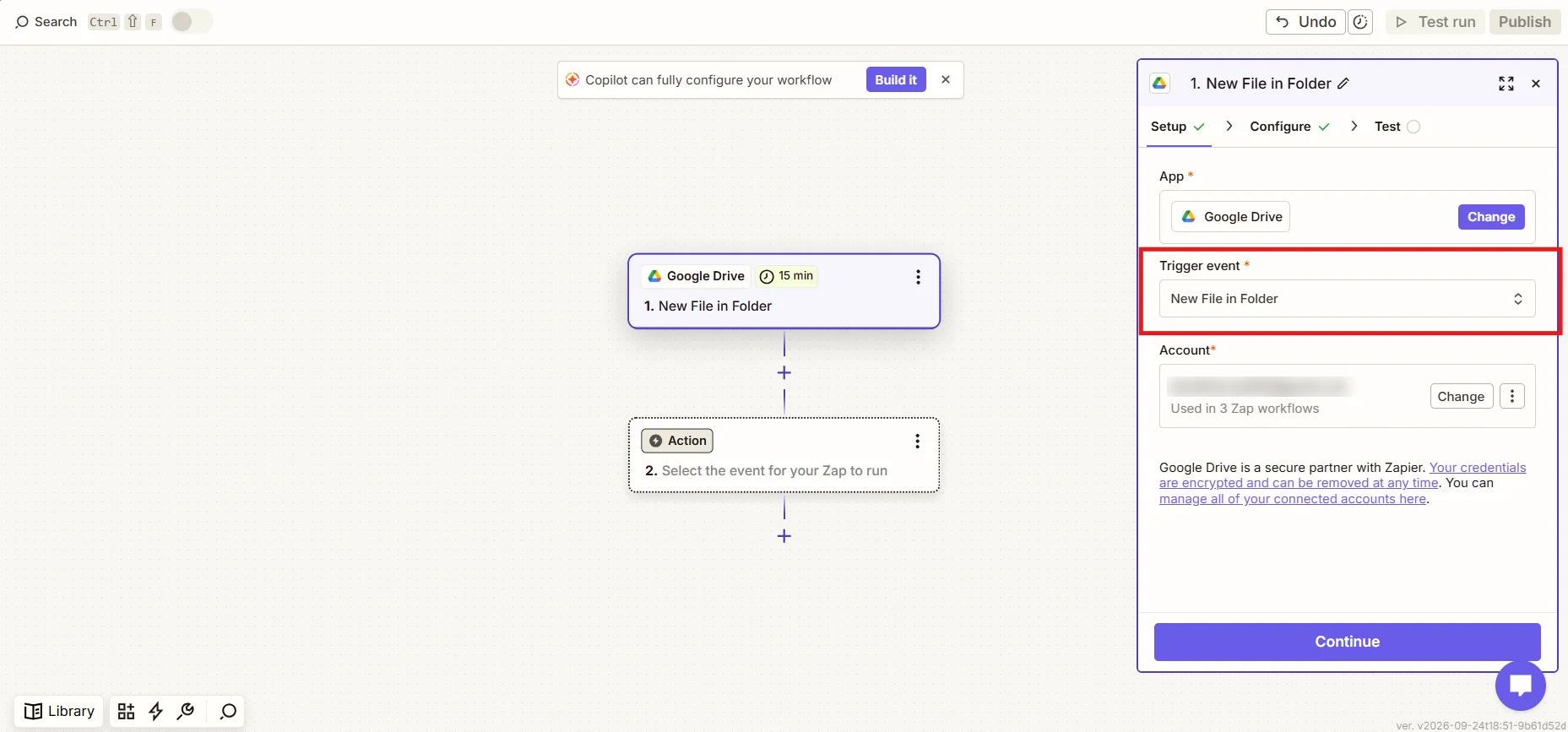
Step 2.1: Choose the trigger event
Select New File in Folder as your trigger event. This means that whenever a new file is added to the folder you chose, Zapier will run the actions you set up next.
Then choose the upload folder you created in the prerequisites.
Step 2.2: Configure your folder
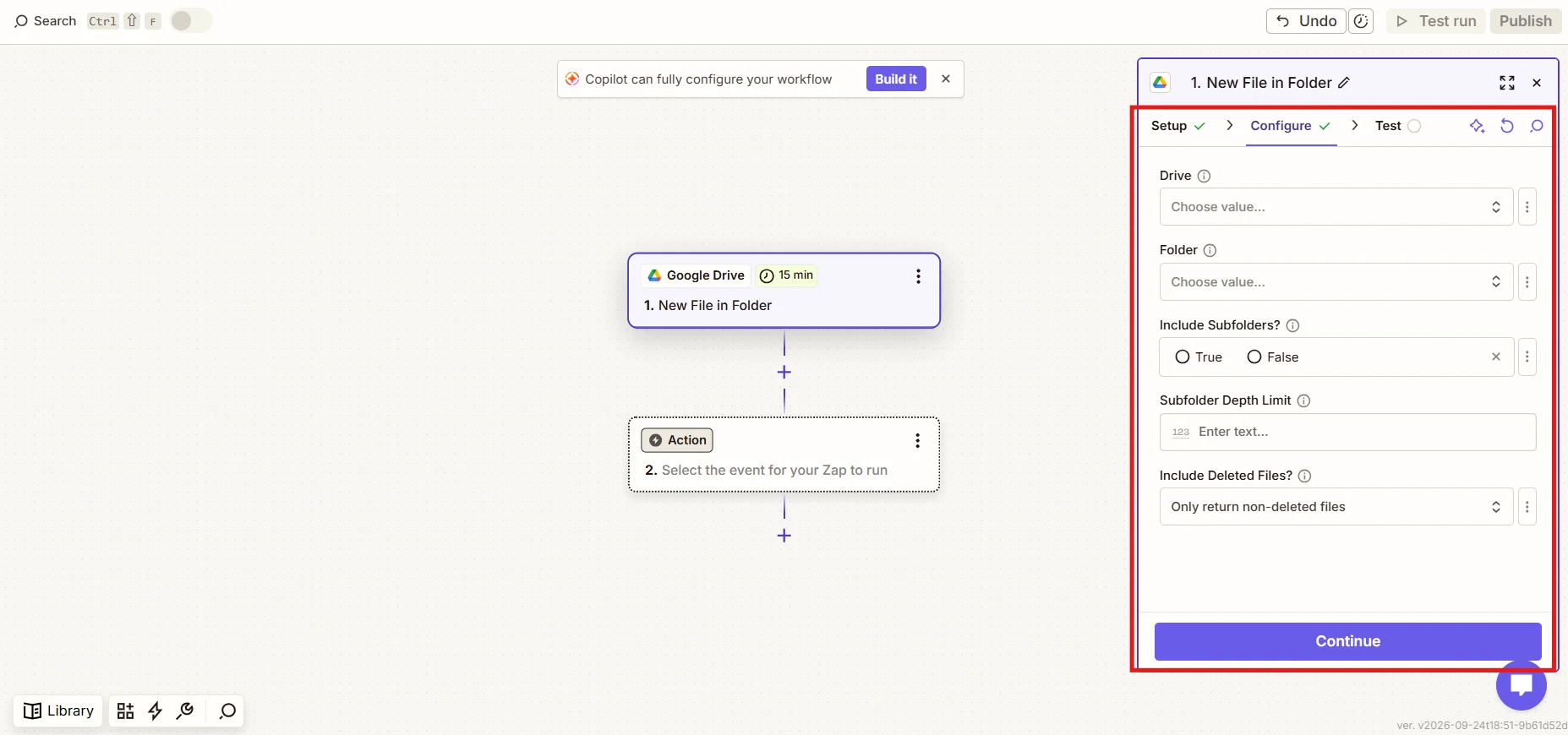
In the Configure tab, you tell Zapier where to look for new files. Select the following:
- Drive: the Google Drive where your documents are stored.
- Folder: the folder you created for collecting your documents.
- Subfolders (optional): if your folder contains subfolders that should also be watched, you can specify them here.
That's it! Zapier will now watch this location for new files.
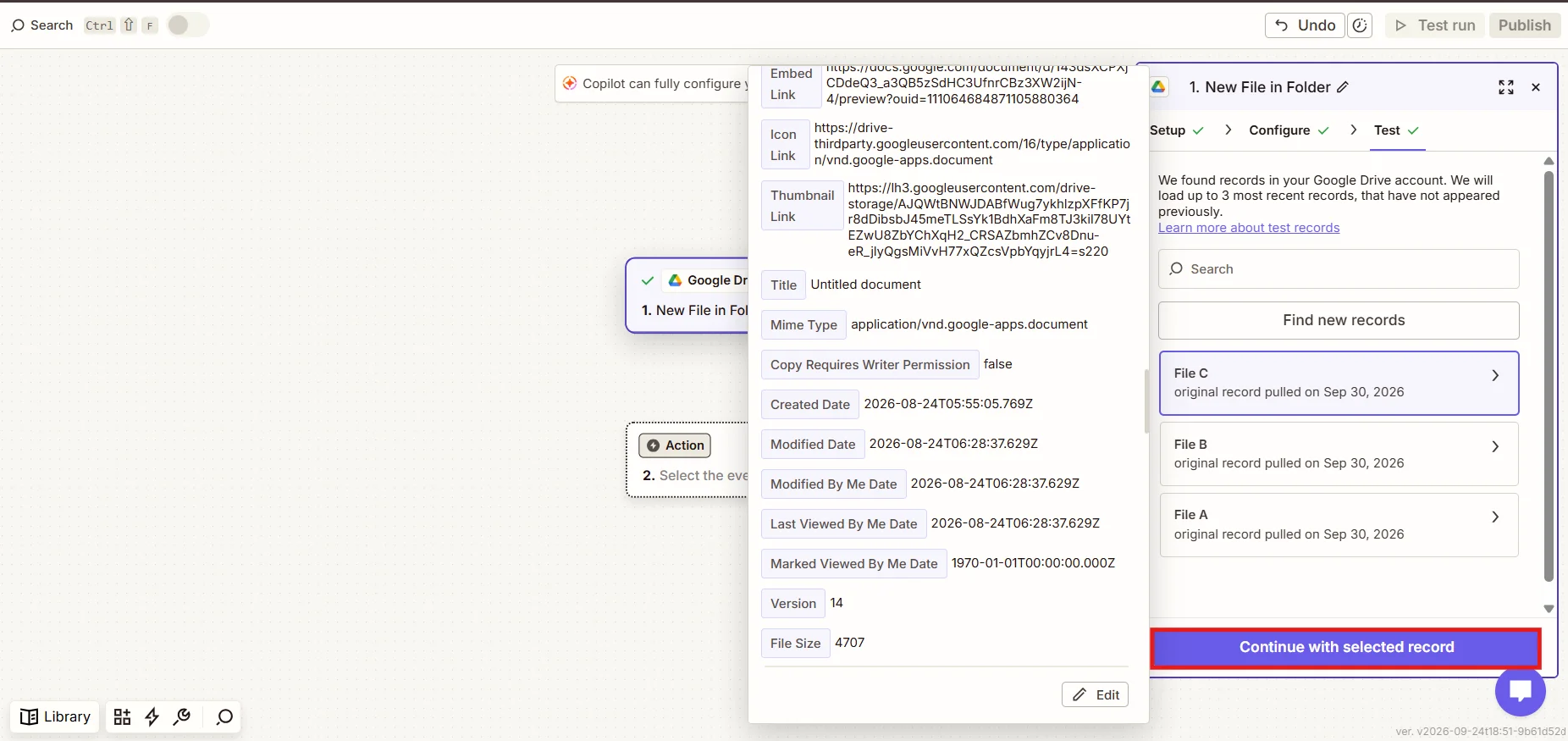
Step 2.3: Test your trigger
Click Test trigger. Zapier will show a list of the documents it found in your folder. If your file appears in the list, you're on the right track. Select it and click Continue with selected record.
Step 3: Set PerfectParser as your action
Now it's time to set up your action node. Select PerfectParser as the action app, then connect it to Zapier by entering the API key generated in your PerfectParser account. (Don't share this key publicly.)
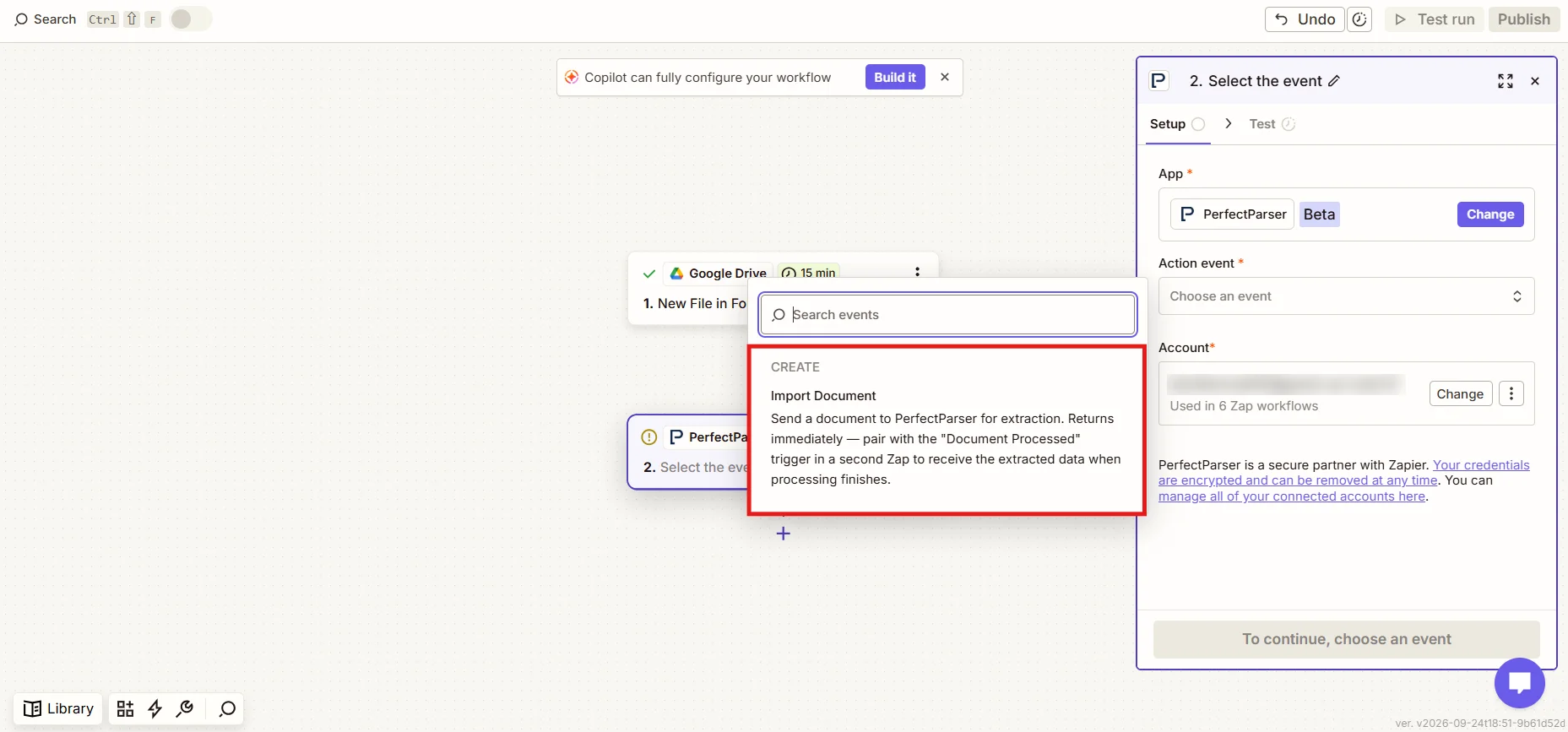
Next, select Import Document as the action event. This automatically sends the documents from your Drive folder to PerfectParser.
Step 3.1: Select your destination parser
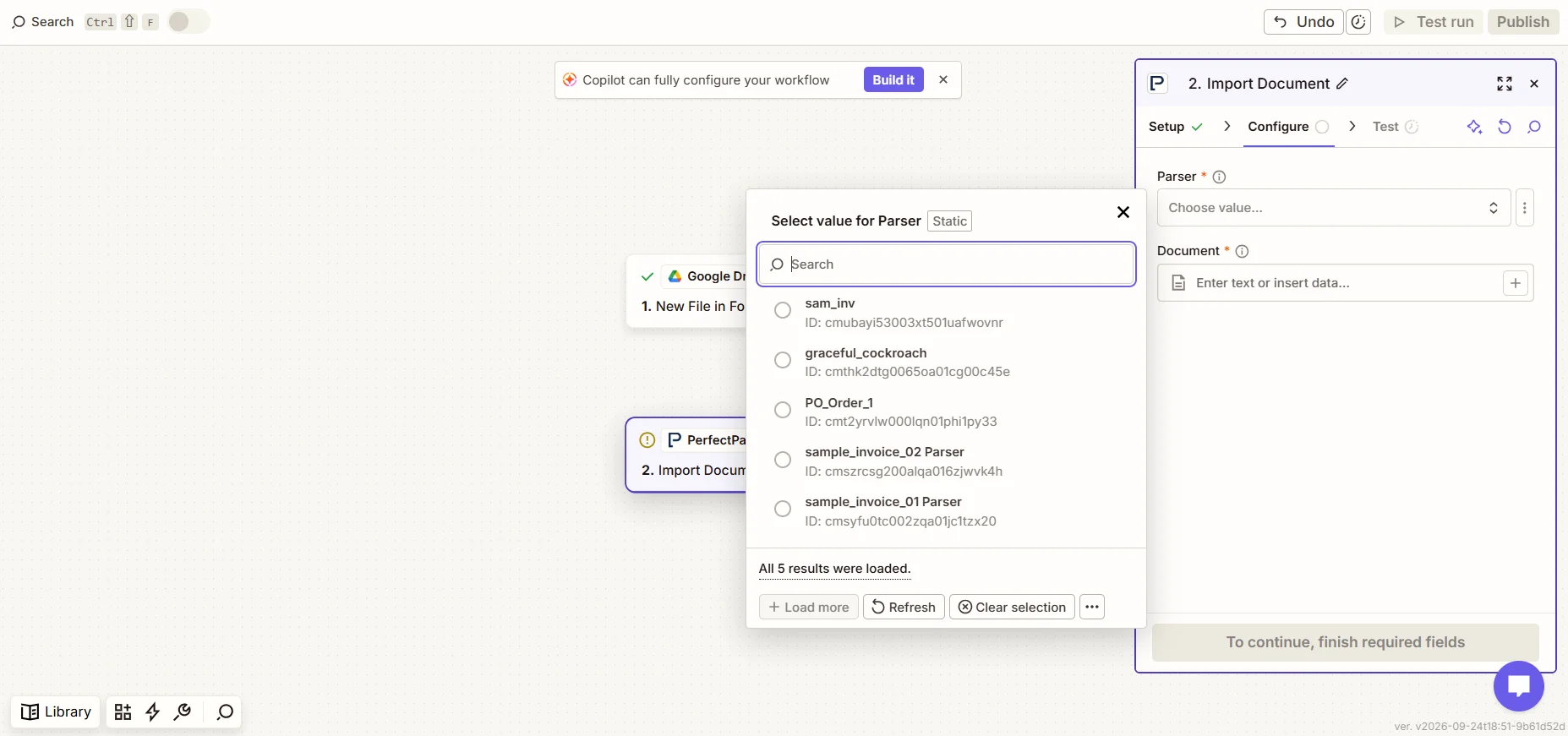
In the Configure tab, select the destination parser, which is the parser that will receive your documents.
Before you do this, make sure you have already created a parser in PerfectParser and processed a sample document with it. This helps the extraction run smoothly.
Step 3.2: Map the document field
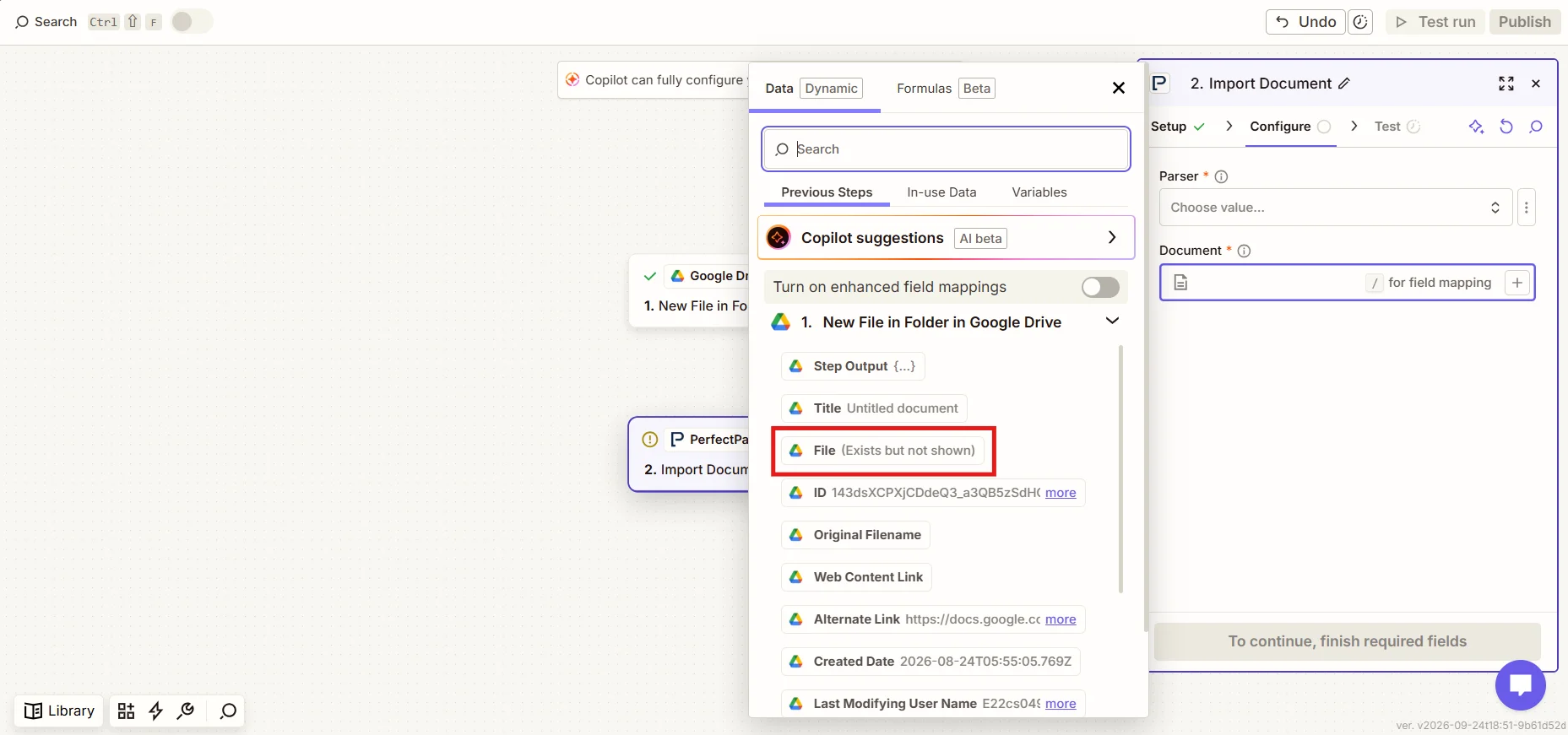
Select your parser. For the Document field, map the option File (exists but not shown) from the Google Drive trigger.
We choose this option because we can't know the name of a newly added file in advance. By mapping this field, Zapier automatically passes along whichever file is added to your folder, even though it isn't available to preview right now.
Step 3.3: Test and publish Zap 1
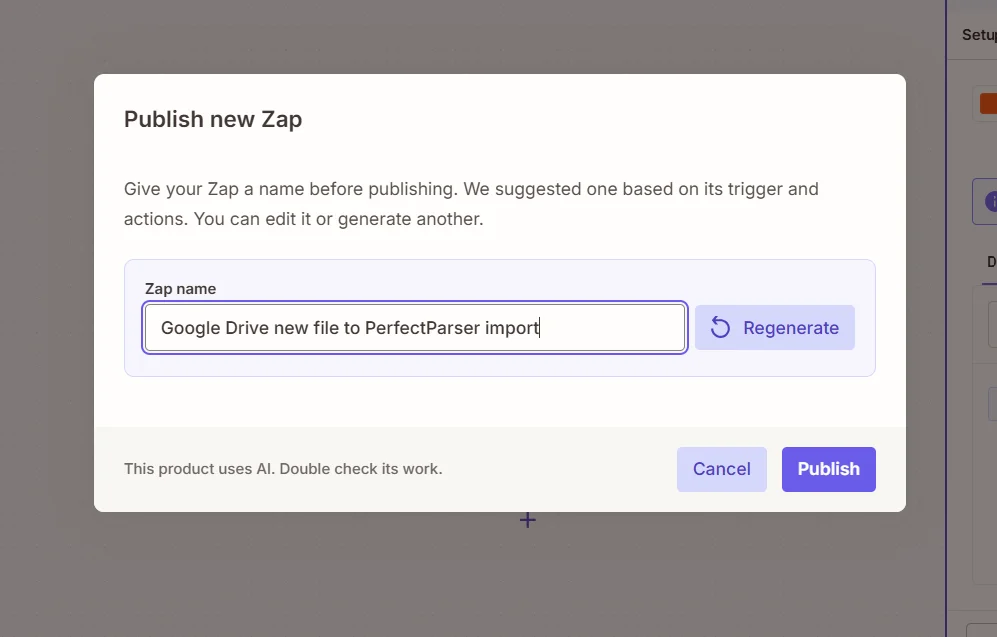
Click Test step to send the uploaded document to PerfectParser. Once the test works, give your Zap a name (anything you like) and click Publish to turn it on.
Setting Up Zap 2: PerfectParser to Google Sheets
Step 4: Set PerfectParser as the trigger (Zap 2)
Now create a new Zap. This one pulls the extracted fields from PerfectParser and adds them as rows in Google Sheets.
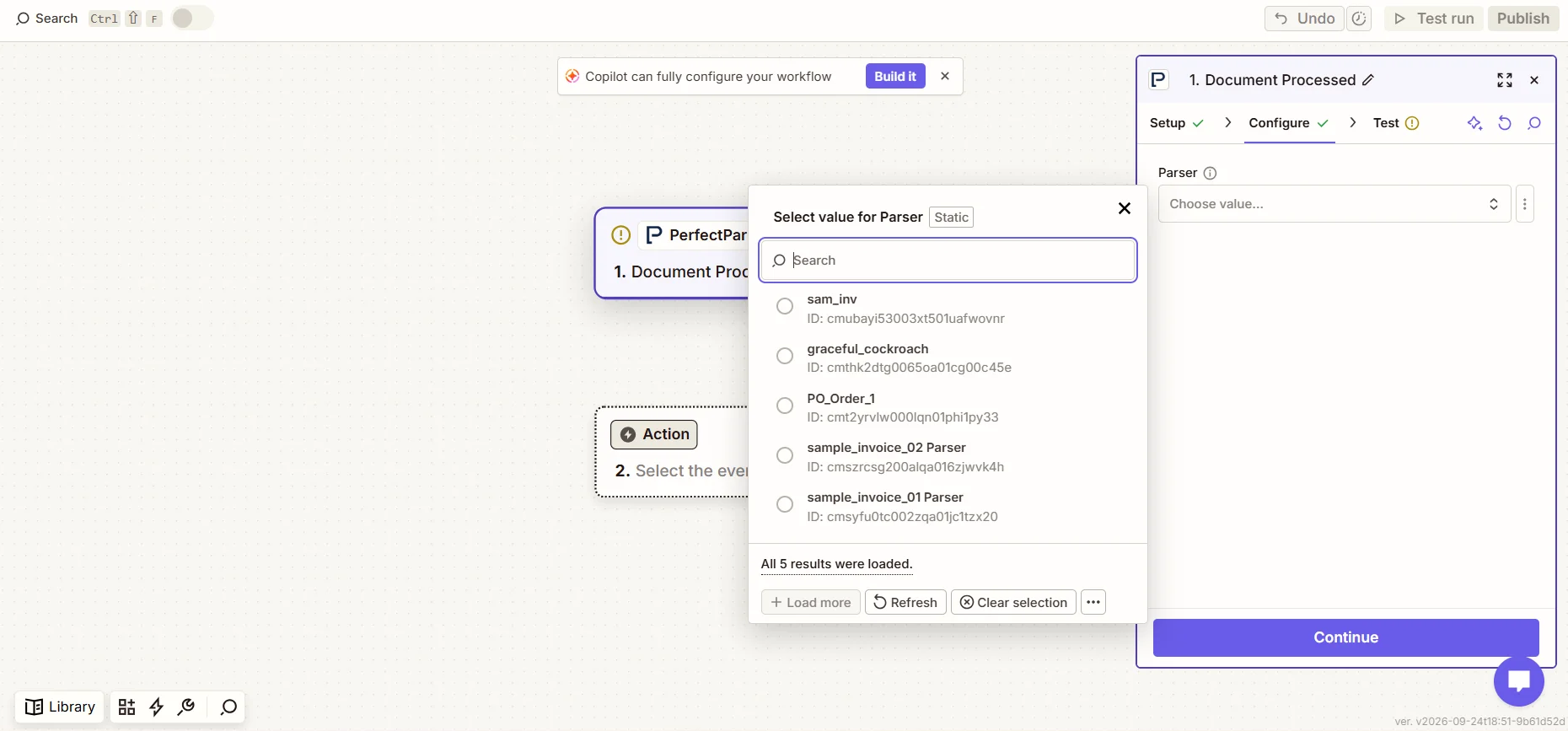
Choose PerfectParser as your trigger app and select Document Processed as the trigger event. Make sure Zapier is connected to PerfectParser by entering your API key. Next, select your parser and test the step to make sure everything is working.
Step 4.1: Add the data to Google Sheets
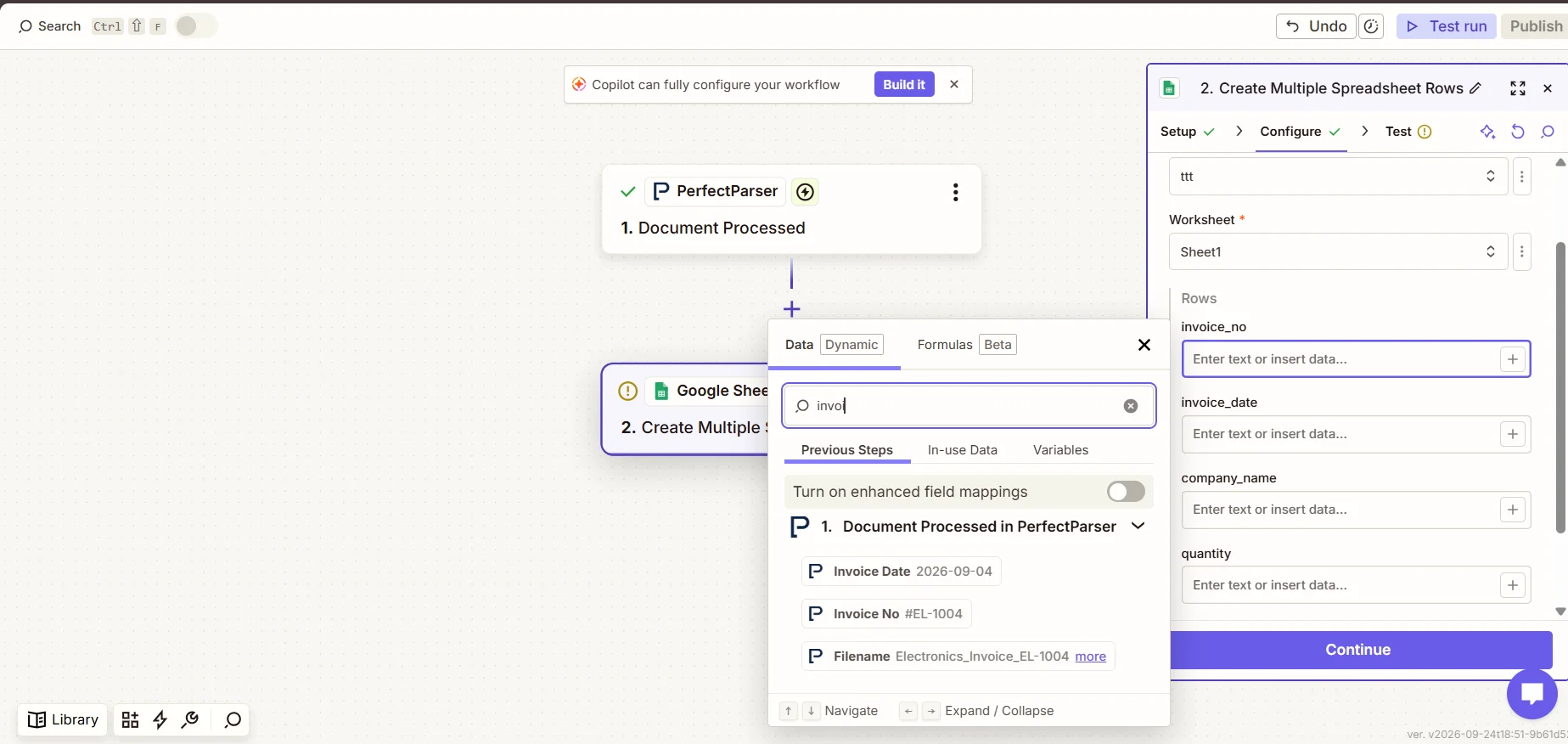
Now set Google Sheets as your action node. Before you continue, add headers to your Google Sheet for each field you want to extract from your documents (for example, invoice_no and invoice_date).
Then select your Google Sheet, map the extracted fields to the matching columns, and click Test. If everything is set up correctly, you will see the values added to your sheet.
Step 5: Publish your Zap and test the workflow
Click Publish to turn your Zap on. Then make sure that both Zaps are live.
To test the workflow, upload a document to your Google Drive folder. It may take a couple of minutes to complete. Once it's done, everything happens automatically, so there's nothing more to worry about. Every time you upload a file, its extracted data will be added to your Google Sheet.
Troubleshooting Common Setup Issues
Most issues stem from an inactive API key, missing spreadsheet columns, or folder placement errors. Below are the most common problems and how to resolve them.
1. Zapier isn't fetching parsers or sample data from PerfectParser
Cause: The API key is either inactive, missing, or was copied incorrectly.
How to fix:
- In PerfectParser, navigate to:
Dashboard → Your Parser → Integrations → API - Confirm your API key is generated and active, then copy it.
- In Zapier, reconnect your account and paste the exact key.
- Always reuse the same primary API key across your Zaps rather than creating multiple keys, and never paste your API key into public chat models.
2. Extracted fields are missing or blank in Google Sheets
Cause: Missing header rows in Google Sheets, or Zapier hasn't reloaded your columns.
How to fix:
- Ensure Row 1 has headers: Your Google Sheet must have clear column names (e.g.,
Invoice Number,Date,Total Amount) before Zapier can map to it. - Click "Refresh fields" in Zapier: If you added or changed column headers in Google Sheets after selecting the sheet in Zapier, click the Refresh fields button at the bottom of the Action step to pull in the latest columns.
- Check field mappings: In the Action tab, verify that every column is mapped to a specific output field from PerfectParser.
- Confirm the spreadsheet and tab: Ensure the Zap is connected to the right Google Drive account, spreadsheet file, and worksheet tab.
3. Zap 1 triggers repeatedly or uploads the Google Sheet itself
Cause: The destination Google Sheet is stored inside the monitored upload folder.
How to fix:
- Move your Google Sheet out of the document drop folder and store it in your root Drive or a dedicated "Reports" directory.
- If you need subfolders watched, ensure you specify them intentionally in Step 2.2 rather than placing destination output files inside the intake directory.
Conclusion & Next Steps
Building a two-Zap pipeline between Google Drive, PerfectParser, and Google Sheets transforms cloud folder uploads into an instant, background data entry machine. Once active, team members simply drop invoices, POs, or receipts into Drive, and structured spreadsheet rows appear automatically in under 2 minutes.
Prefer uploading documents directly into the parser instead of monitoring cloud storage? Check out our guide on how to convert PDF to Google Sheets with Zapier.
Build Your Hands-Off Google Drive Pipeline
Turn your Google Drive folders into an automated data entry engine. Drop in PDFs, invoices, or purchase orders and let PerfectParser and Zapier stream structured data straight into Google Sheets — zero manual keying required.
Set Up Your Drive Pipeline →