
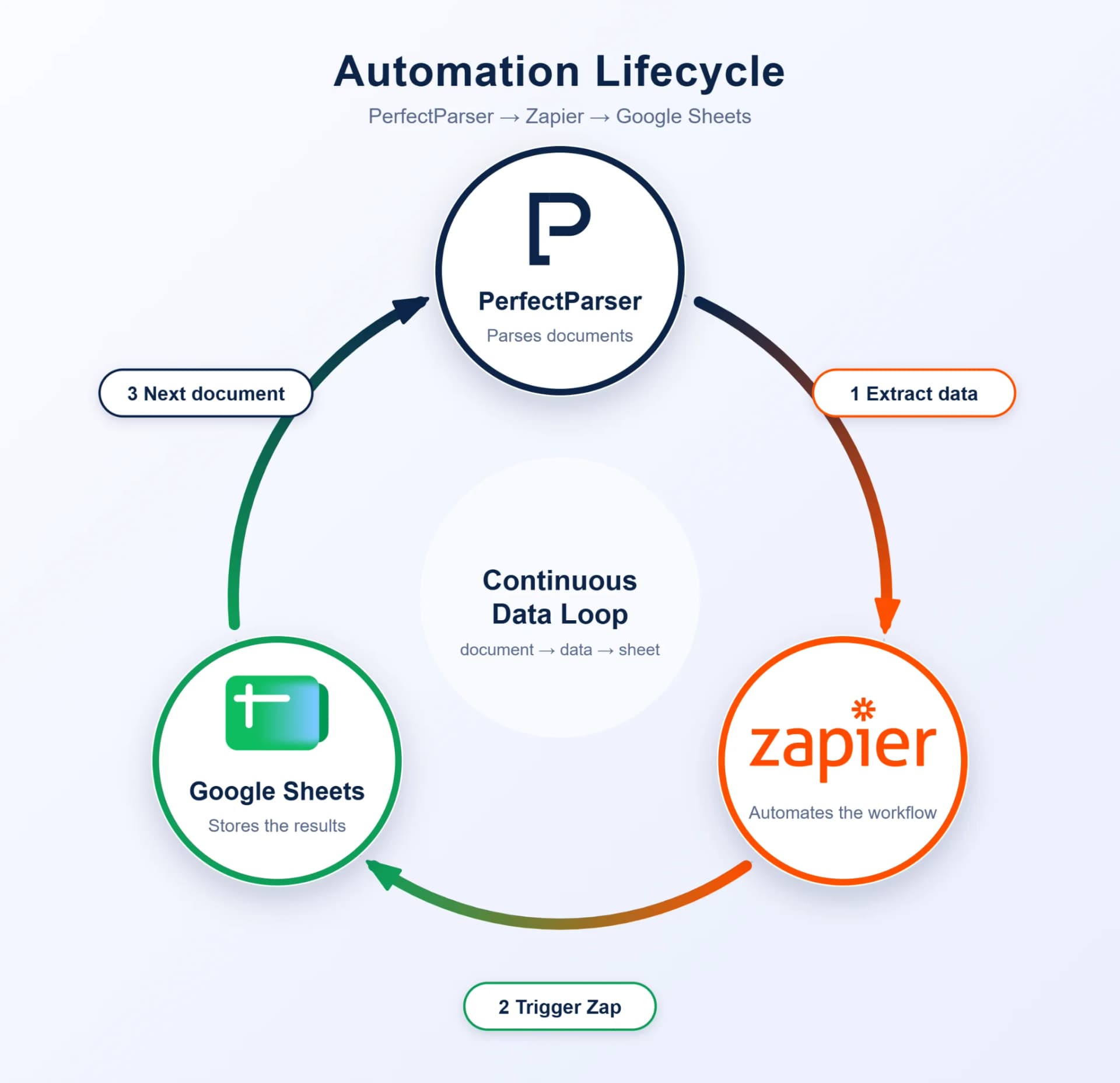
Typing data in by hand is tedious work, but don't worry, we're here to help. You no longer need to enter every value yourself. Manual data entry is also prone to mistakes, and those errors can cause problems in your work later on. With PerfectParser, you simply upload your document and it extracts the fields for you. Zapier then adds those extracted fields to your Google Sheet automatically. This isn't a one-time event, either. Once you publish your workflow in Zapier, the data from every document processed in PerfectParser is added to your Google Sheet automatically.
Quick Summary: To automate document data entry and convert PDF to Google Sheets, connect PerfectParser to Zapier using your API key. PerfectParser uses AI to automatically extract document fields (such as invoice numbers, totals, and dates), while Zapier instantly appends the extracted data as a new row in your Google Sheet upon document processing.
Why Zapier?
Running a small business without technically strong team members? No worries, Zapier is here for you!
Zapier's core philosophy is simple: automation should be available to everyone, with no coding required. The company has delivered on this promise with an interface that is clean, simple, and easy to understand. Even someone with a completely non-technical background can pick it up and start automating in no time.
When Should You Use PerfectParser with Zapier?
PerfectParser extracts fields from documents, images, and more. For example, if you manage supplier invoices, automated invoice data extraction lets you pull out invoice_no, vendor_name, invoice_date, and total_amount without manual re-keying. You can then review the extracted data and edit it however you like: change values, delete fields, or add new ones. You can also download the results as JSON, Excel, or CSV using tools like the invoice-to-csv converter.
Manual Data Entry vs. Automated Data Entry Software
A Real-World Example
Imagine you receive invoices in physical form, and you have to read every field and type it into an Excel sheet by hand. That is tedious, time-consuming manual work, and it is easy to make mistakes.
This is where PerfectParser and Zapier work together:
- Upload your invoice to PerfectParser, which extracts the fields.
- Zapier automatically sends those fields to Google Sheets.
Once it is set up, you no longer have to copy the data into your spreadsheet yourself. It's a simple way to save time and reduce errors.
Prerequisites
Before you start, make sure you have accounts on both platforms:
- PerfectParser: Log in to your PerfectParser account. If you don't have one, sign up first, since an account is required to get started. (See the PerfectParser guide and Zapier integration documentation for more details.)
- Zapier: Log in to your Zapier account, or sign up if you're new, so you can start building your workflows.
Video Walkthrough
Prefer a visual guide? Watch the step-by-step video tutorial on connecting PerfectParser to Google Sheets with Zapier:
Step-by-Step: Connect PerfectParser to Google Sheets
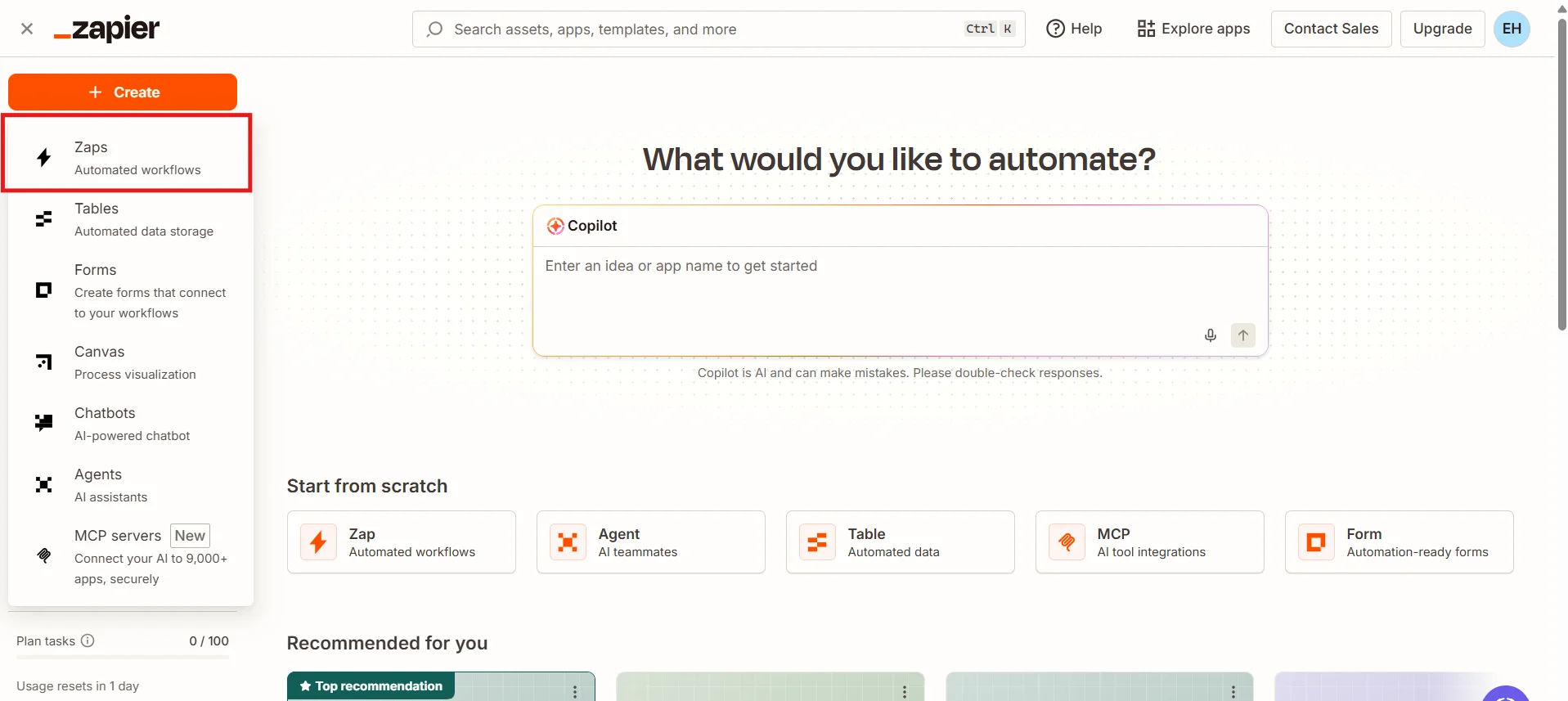
Step 1: Create a new Zap
Log in to your Zapier account and click Create Zap. This takes you to the canvas page, where you can set up your trigger and actions.
Step 2: Set up your parser in PerfectParser
Log in to your PerfectParser account and create the parser you want to use for this automation. You can also use an existing parser.
Step 3: Set PerfectParser as the trigger
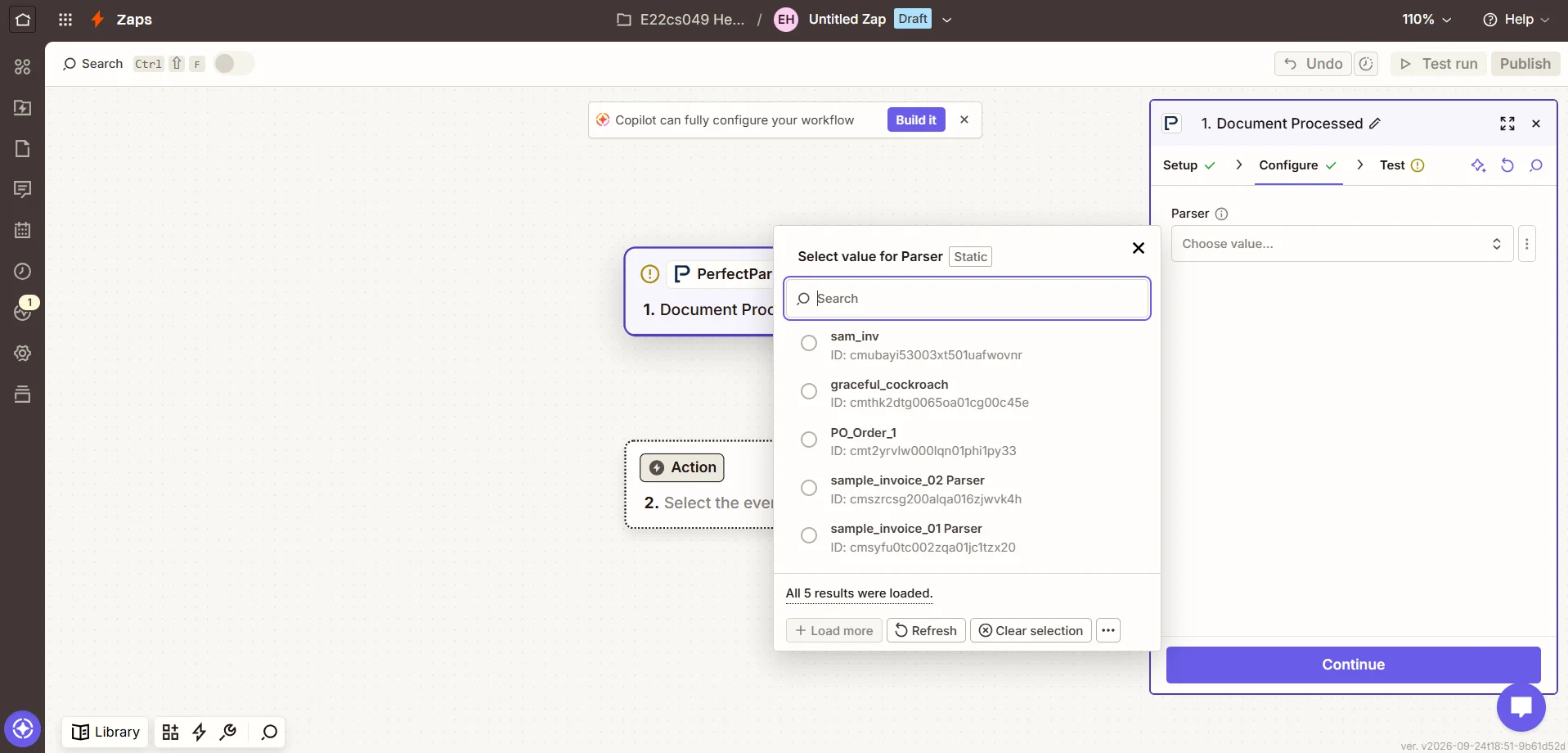
Back in Zapier, choose PerfectParser as your trigger app and select Document Processed as the trigger event. Acting as an intelligent Zapier parser, PerfectParser automatically converts unstructured document text into structured fields. Connect PerfectParser to Zapier by entering the API key generated in your PerfectParser account. Next, select your parser and test the step to make sure everything is working.
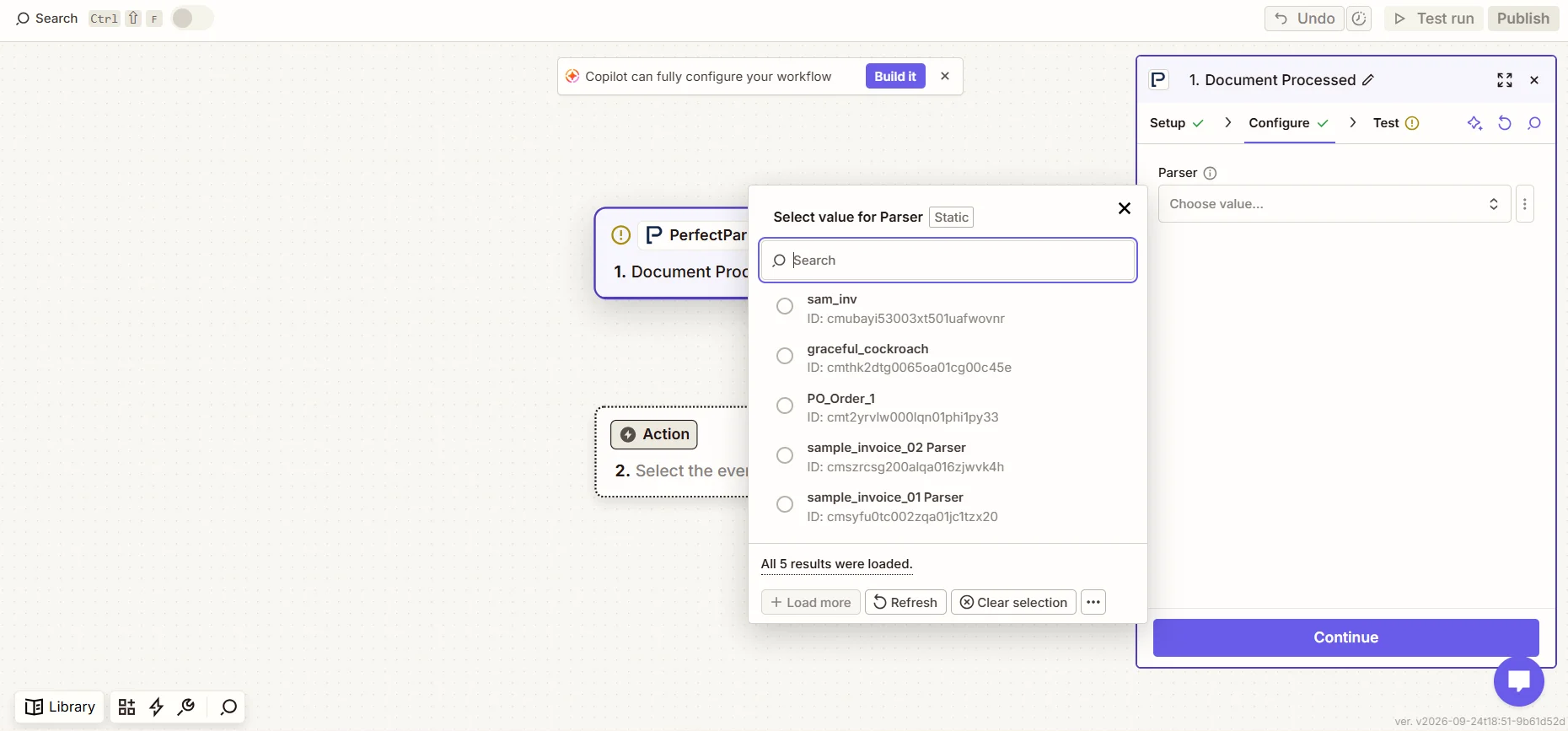
Step 4: Map Extracted Fields (Convert PDF to Google Sheets Rows)
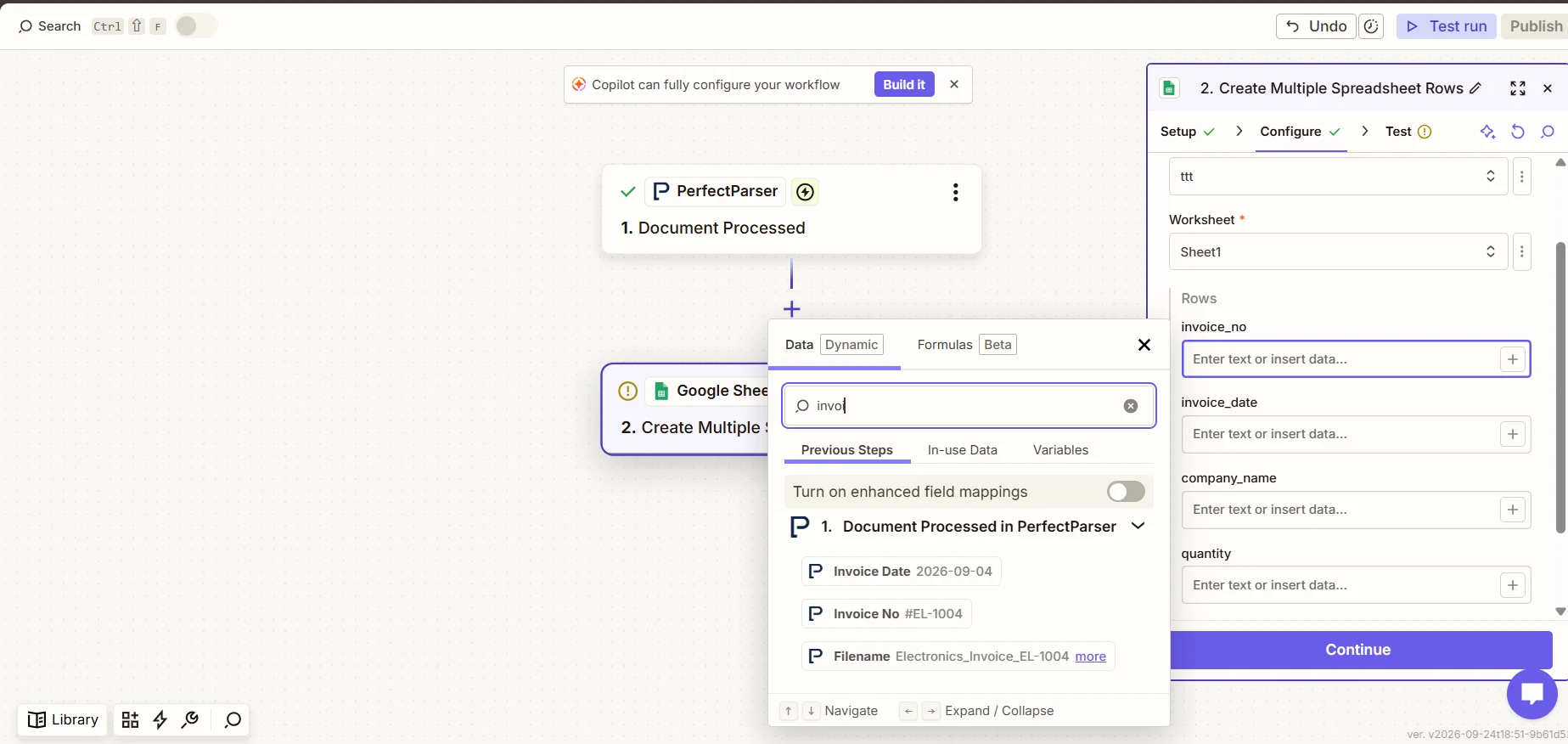
Now set Google Sheets as your action node. Before you continue, add headers to your Google Sheet for each field you want to extract from your documents (for example, Invoice Number, Vendor Name, Issue Date, and Total Amount).
Then select your Google Sheet, map the extracted fields to the matching columns, and click Test. If everything is set up correctly, you will see the values added to your sheet as a new row.
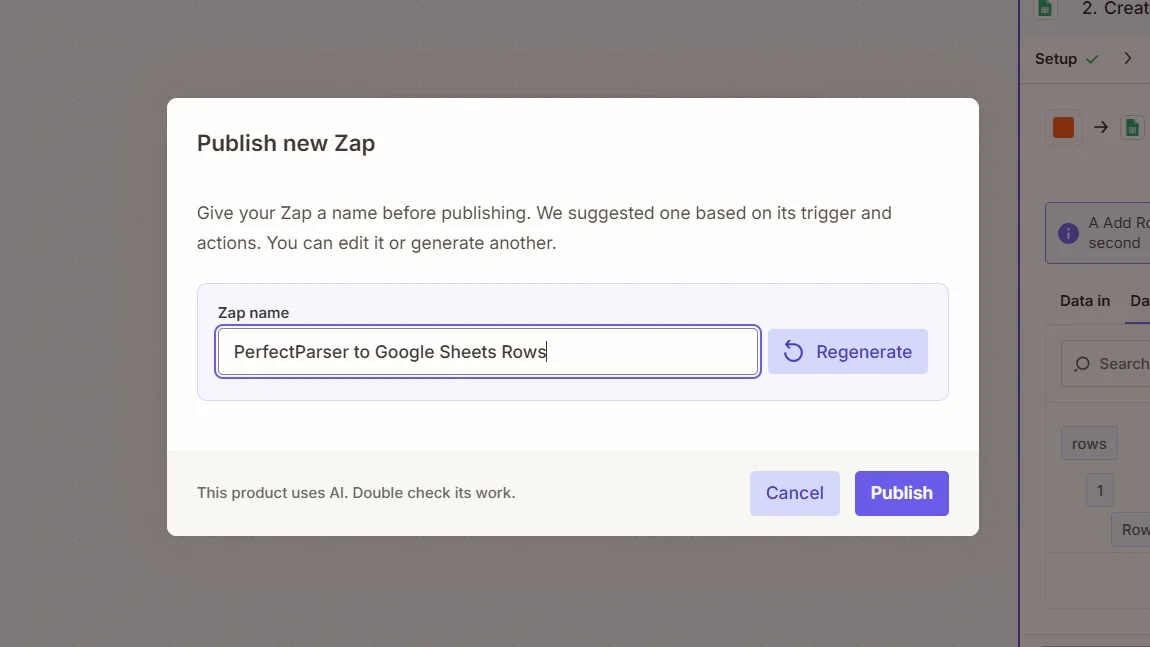
Step 5: Publish your Zap
Click Publish to turn your Zap on. From now on, every time a document is processed in PerfectParser, the extracted values are added to your Google Sheet automatically, with no copying or typing by hand.
Troubleshooting Common Setup Issues
Most automation issues stem from an inactive API key or missing spreadsheet columns. Below are the two most common problems and how to resolve them.
1. Zapier isn't fetching parsers or sample data from PerfectParser
Cause: The API key is either inactive, missing, or was copied incorrectly.
How to fix:
- In PerfectParser, navigate to:
Dashboard → Your Parser → Integrations → API - Confirm your API key is generated and active, then copy it.
- In Zapier, reconnect your account and paste the exact key.
- Always reuse the same primary API key across your Zaps rather than creating multiple keys, and never paste your API key into public chat models.
2. Extracted fields are missing or blank in Google Sheets
Cause: Missing header rows in Google Sheets, or Zapier hasn't reloaded your columns.
How to fix:
- Ensure Row 1 has headers: Your Google Sheet must have clear column names (e.g.,
Invoice Number,Date,Total Amount) before Zapier can map to it. - Click "Refresh fields" in Zapier: If you added or changed column headers in Google Sheets after selecting the sheet in Zapier, click the Refresh fields button at the bottom of the Action step to pull in the latest columns.
- Check field mappings: In the Action tab, verify that every column is mapped to a specific output field from PerfectParser (e.g., mapping
invoice_noto your "Invoice Number" column). - Confirm the spreadsheet and tab: Ensure the Zap is connected to the right Google Drive account, spreadsheet file, and worksheet tab.
Conclusion & Next Steps
Automating document data entry between PerfectParser and Google Sheets replaces hours of tedious, error-prone manual typing with an instant, background workflow. Once configured, every incoming document is extracted and logged in under 2 minutes.
Looking for an end-to-end automated pipeline from cloud storage? Check out our step-by-step guide on how to automate document processing from Google Drive to Google Sheets.
Automate Your PDF & Spreadsheet Entry Today
Stop manually typing invoices, receipts, and order forms into Google Sheets. Connect PerfectParser to Zapier and turn unstructured documents into clean spreadsheet rows in under 2 minutes — 20 free credits included.
Start Automating Google Sheets →