
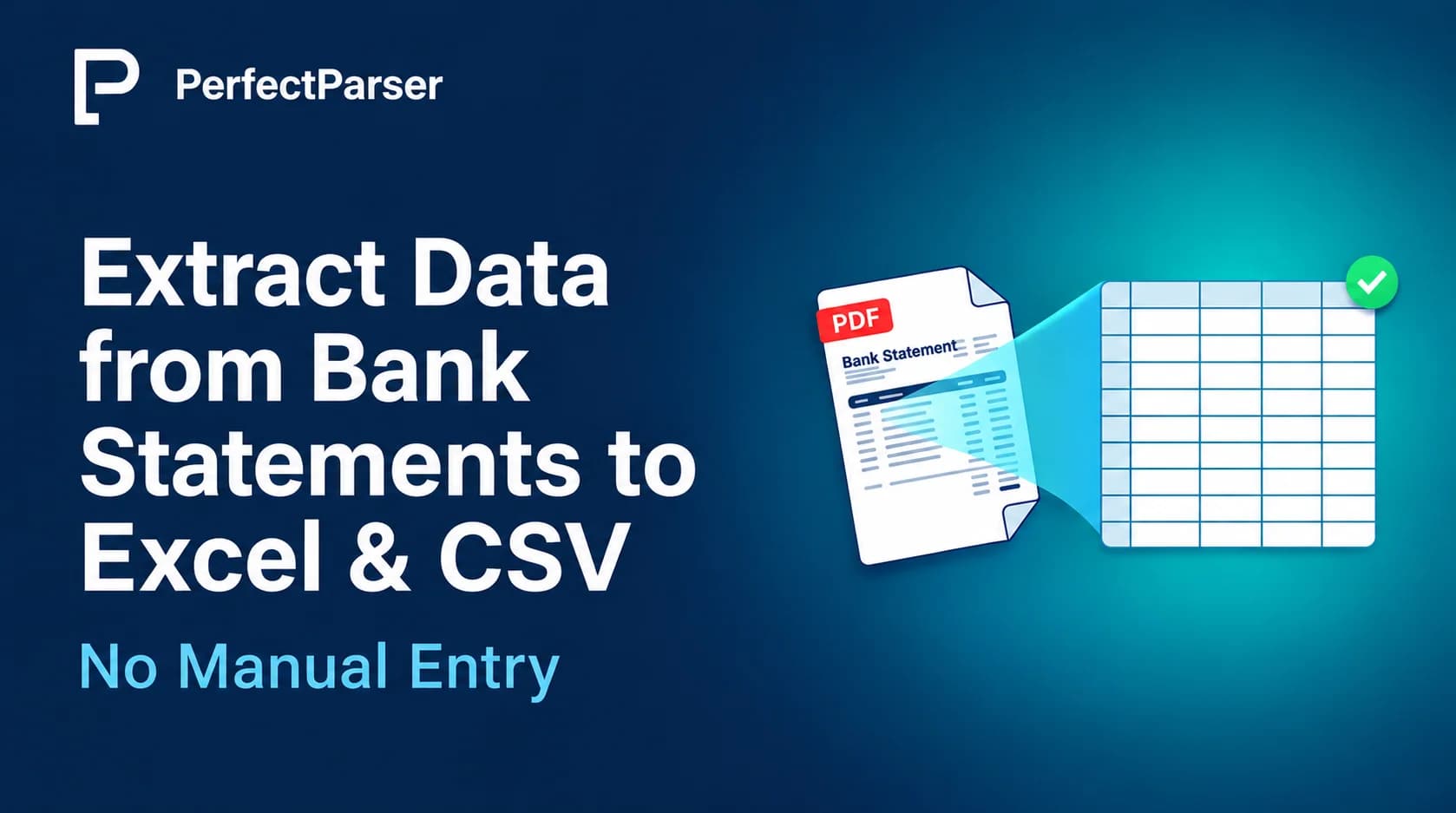
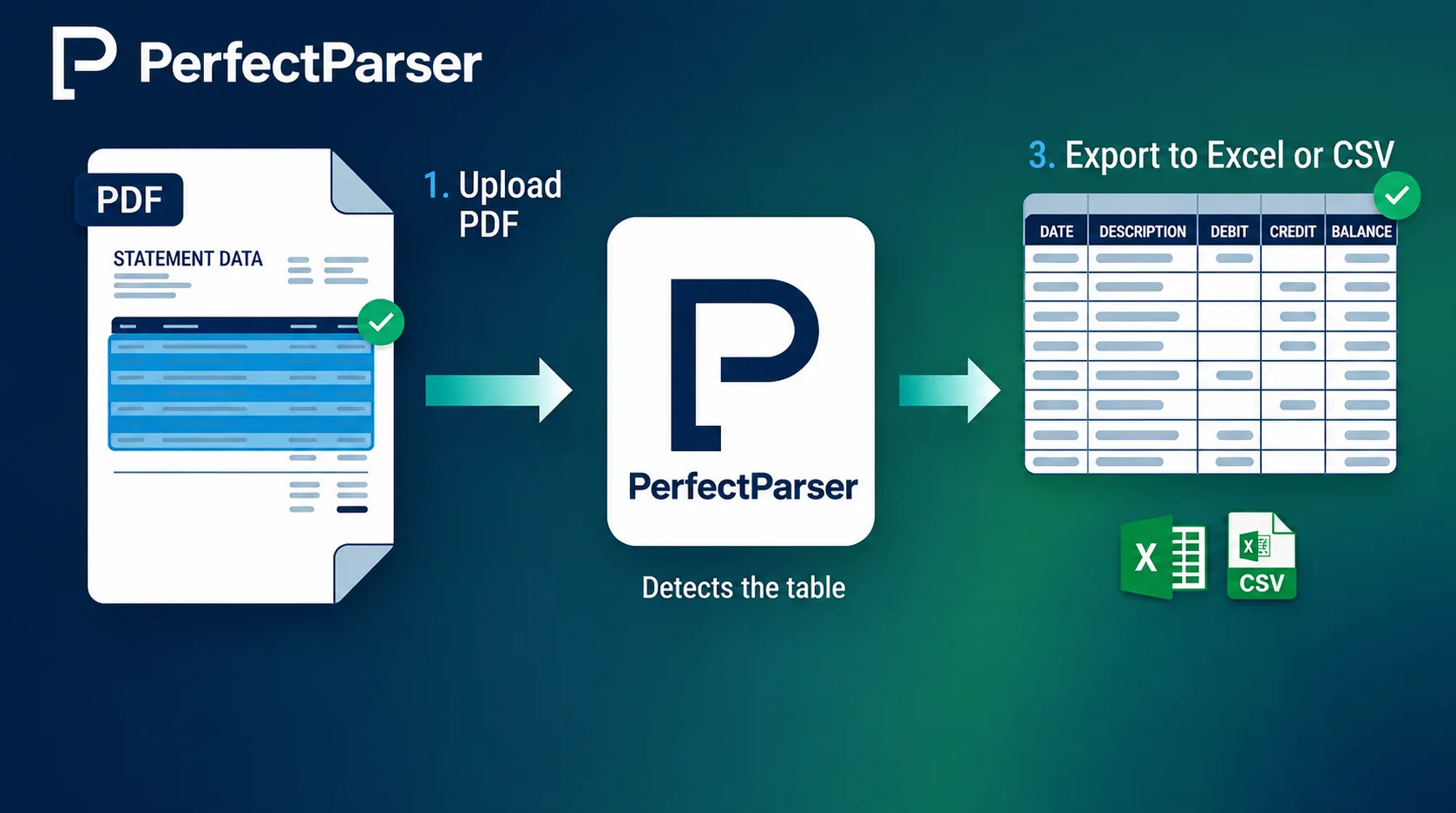
To extract data from bank statements, upload the PDF or scan to a parser that detects the transaction table, check the rows against the statement, and export to Excel (.xlsx) or CSV. With PerfectParser, this takes about a minute per statement. Dates, descriptions, debits, credits, and running balances arrive in separate columns, ready for Excel, QuickBooks, or Xero.
A client sends you twelve months of PDF statements. Each one has 80 to 200 rows, descriptions that wrap onto a second line, and page breaks that cut the table in half. You select the table, paste it into Excel, and get one long column of broken text.
This guide shows how to get that data out cleanly. It covers what to extract, the four main methods and their trade-offs, a step-by-step workflow, how to handle scans, and a balance check that catches errors before they reach your ledger. If you only want to convert a file right now, use our free bank statement to Excel tool and come back for the checklist.
What Data Can You Extract from a Bank Statement?
A bank statement has two layers, and a good extraction captures both.
Account-level fields appear once per document:
- Bank name and account holder name
- Account number (often partially masked)
- Statement period start and end dates
- Opening balance and closing balance
Transaction-level fields repeat on every row:
- Transaction date
- Description or narrative (merchant, payee, reference)
- Debit amount (withdrawals and payments out)
- Credit amount (deposits and payments in)
- Running balance after the transaction
If your goal is to extract transactions from a bank statement for bookkeeping, the minimum useful set is date, description, debit, credit, and balance. The opening and closing balances matter for a different reason: they let you verify that the extraction is complete, which we cover below.
Why Copy-Paste Fails on Bank Statements
Bank statements are designed for people to read, not for software to process. Several features that look harmless on screen break simple tools:
- Wrapped descriptions. A long payee name or reference spills onto a second or third line. A line-by-line tool turns one transaction into two or three fragments, some with no date or amount.
- Multi-page tables. Headers repeat on every page, and totals or "continued" notes interrupt the table. Pasting page by page leaves stray header rows in the middle of your data.
- Invisible structure. The grid you see in a PDF is usually drawn lines, not a real table. Text that looks aligned in columns may be stored in separate chunks, so copied values come out in the wrong order.
- Inconsistent layouts. Every bank formats statements differently. Some use separate debit and credit columns, others a single signed amount. Some put the date first, others a posting date and a value date.
- Number formatting. Negative values may appear in parentheses or with a trailing "DR" or "CR". European statements use commas as decimal separators.
This is why the output of a quick paste usually needs more cleanup than the paste saved. The best way to extract data from bank statements is one that understands the table as a table. To see how AI vision models tackle coordinate drift and stitch broken transaction grids across page breaks without manual templates, read our technical breakdown on bank statement OCR.
Four Ways to Get Bank Statement Data into Excel
Manual typing is only sensible for a statement or two. At 20 to 40 minutes per statement, the cost grows quickly, and errors are almost guaranteed over a long session.
Excel's built-in PDF import is worth trying first on simple, digital statements. It is free and sometimes works perfectly. When it doesn't, you end up repairing split rows by hand.
Scripts (such as Python using pdfplumber or Camelot) give developers full control and work well when you handle one bank with a stable layout. The maintenance cost appears the moment you add a second bank, or the first one changes its PDF generator.
A dedicated parser makes sense when volume, variety, or scans make the other options painful. That is the case this guide focuses on.
How to Scan Bank Statements into Excel
Many clients still bring paper statements or phone photos. If you need to scan bank statements into Excel, scan quality is the main factor in accuracy. Follow these guidelines:
- Resolution: scan at 300 DPI or higher.
- Color mode: black and white or grayscale usually works best.
- Alignment: keep the page flat and straight. Skewed or curled pages cause misread digits.
- Lighting: if photographing, avoid shadows, glare, and perspective distortion. Shoot directly above the page.
- Framing: make sure every column is in the image, especially the right-hand balance column that often sits close to the edge.
- Multi-page order: scan pages in sequence so the table reconstructs in the right order.
Even with a good scan, review amounts more carefully than you would for a digital PDF. Small fonts are where a 1 is read as a 7, or a decimal point as a comma. A decimal misread can turn $10.00 into $1,000 and push your totals off without any obvious clue.
If you have the choice, request the digital PDF from the client or the bank. It will almost always beat a scan of the printed version.
Keep Debits and Credits in Separate Columns
Banks present amounts in one of two ways: separate Debit and Credit columns, or a single signed Amount column. Getting this wrong is a common reason accounting imports fail or post transactions with the wrong sign.
PerfectParser keeps credits (deposits) and debits (withdrawals) in their own columns, so the original meaning is preserved. If your import template needs one signed amount instead, you can derive it in a single Excel formula:
=Credit - Debit
Fill it down the column, and you have a signed amount without losing the separate columns you started with. Keeping both is useful. The separate columns help when you filter income from expenses, and the signed column helps with import templates that expect it.
Merge Multiple Months into One Ledger
Single statements are rarely the whole job. A year-end review, a loan application, or a new client onboarding usually means 6 to 24 statements.
Upload them together and merge the results into one continuous ledger. This gives you:
- One sheet to sort and filter, instead of a dozen tabs
- A single date-ordered view for spotting gaps, such as a missing month
- Easier pivot tables for monthly totals and category summaries
Before you merge, sort by date and check that the closing balance of one month matches the opening balance of the next. A mismatch usually means a missing statement, which is easier to catch now than during an audit.
Run a Balance Check Before You Import Anything
Whatever tool or method you use, verify the result before it touches your books. This takes a couple of minutes and catches most extraction problems:
- Take the opening balance from the statement.
- Add the sum of all credits.
- Subtract the sum of all debits.
- Compare the result to the closing balance.
If the numbers match, no rows were dropped and no amounts were misread. If they don't, use the running balance column to find the first row where your calculation and the statement diverge. That row is usually the source of the problem. Because PerfectParser preserves the running balance, locating it is straightforward.
A second quick check: count the transactions in your export and compare with the statement if it shows a transaction count. A mismatch points to split or missing rows.
A note on scope: this check is a review step for you. PerfectParser extracts the data, but it does not reconcile it against receipts, invoices, or your ledger.
The Real Cost of Manual Data Entry
Manual data entry is the hidden cost of bank statement processing, and it is easy to underestimate. Here is an illustrative calculation. Replace every number with your own:
- Time to key one statement by hand: 20–40 minutes (assumption)
- Statements per month: 20
- Monthly time at 30 minutes each: 10 hours
- At a billing rate of $50 an hour: roughly $500 a month, or $6,000 a year
The direct time is only part of the cost. The bigger problem is errors that surface late. A transposed digit or a skipped row may not show up until reconciliation weeks later, when finding it means re-checking everything. Typing errors also tend to be invisible: the spreadsheet looks fine and totals look plausible.
There is an opportunity cost as well. Hours spent retyping are hours not spent on advisory work, client conversations, or taking on more clients.
Automated Bank Statement Processing vs. Outsourcing
When intake piles up, many firms look at bank statement processing outsourcing. It is a reasonable option, and the right answer depends on your situation.
Outsourcing can make sense for a large one-time backlog or when you want someone else to own the whole process. For recurring monthly work, automated bank statement processing is usually faster and cheaper, and it limits how many people see client financial data. In both cases, keep your own review step, because responsibility for the numbers stays with you.
Importing the Extracted Data into QuickBooks, Xero, or Sage
Getting data out of the PDF is half the job. The other half is getting it into your accounting software in a format it accepts. Most platforms publish strict file criteria—such as Intuit's QuickBooks CSV bank feed requirements or Xero's bank statement import specifications. While import requirements vary by platform, a few principles apply broadly:
- Column order and names matter. Most importers expect a date, a description, and either one amount column or separate debit and credit columns.
- Date formats must be consistent. Mixed MM/DD/YYYY and DD/MM/YYYY in one file causes silent errors: 03/04/2026 can be read two ways. Standardize before importing.
- Remove non-transaction rows. Header rows, subtotals, and "continued" lines should not be in the file.
- Test with a small batch. Import one month first and confirm the totals before loading a full year.
Because PerfectParser exports clean .xlsx and .csv (you can also generate individual feeds with our free bank statement to CSV tool), you can reshape columns once for your software's template and reuse the same layout every month. It does not post or match transactions inside your accounting platform. Matching and categorizing happen there.
For accounting teams looking to streamline month-end reconciliation on both sides of the ledger, pairing clean bank statement feeds with automated QuickBooks invoice processing and AI invoice data extraction enables touchless bill-to-bank matching.
Best Practices for a Smooth Workflow
- Use original digital PDFs whenever you can.
- Batch similar statements together, such as all checking statements from one bank, to make review faster.
- Name files consistently, for example
ClientName_Bank_2026-03.pdf, so you can trace any row back to its source. - Review a new bank more carefully the first time, then spot-check after that.
- Run the balance check every time. It takes two minutes and prevents hours of rework.
- Keep the original PDF and the exported file together for your audit trail.
- Process monthly, right after statements are issued, so backlogs don't build up. For firms handling recurring monthly drops from clients, you can automate document processing from Google Drive to Google Sheets to extract incoming PDFs directly into shared workbooks.
- Protect client data. Before uploading, confirm how a vendor handles retention and whether files are used for model training.
How to Choose a Bank Statement Converter
Whichever bank statement converter you evaluate, test these points before committing:
- Multi-page tables: does a 12-page statement produce one continuous table?
- Wrapped descriptions: is a two-line narrative one row or two?
- Debit and credit handling: separate columns, or merged?
- Running balance: preserved or dropped?
- Output quality: clean
.xlsxand.csvwith no repair work? - Scan handling: how does it perform on a photo or low-quality scan?
- Privacy: how long are files kept, and are they used to train models?
The most reliable test costs nothing: run the same three statements through every tool you are considering. Use one clean digital PDF, one multi-page statement, and one scan. Compare the results side by side. That tells you more than any feature list, including ours.
What PerfectParser Does and Doesn't Do
To be clear about scope:
It does: multi-page table extraction, zero-config table detection, clean separation of credit and debit columns, running balance preservation, export to clean .xlsx and .csv, and merging multiple months into one continuous ledger.
It doesn't: match bank rows to receipts or invoices in QuickBooks, work as an accounting reconciliation engine, or perform fraud detection. Its job is to get your data out of the PDF and into a clean, usable file.
Try It on Your Own Statements
Upload a statement to the free bank statement to Excel tool and compare the output with your current process. Check the balance, review the rows, and export to Excel or CSV in about a minute.
Extract Bank Statements to Excel & CSV Without Manual Entry
Eliminate manual keying and messy copy-pasting. Convert multi-page PDF bank statements and scans into clean, balance-verified Excel or CSV files ready for QuickBooks, Xero, or Sage. 20 free pages included.
Convert Your Bank Statements Free →